Understanding controlled sales orders
A slower, more careful way to sell — reserve stock, verify it physically, then release it.
Most businesses use the instant checkout: ring up a sale, take payment, hand over the goods, done. Some businesses need more control than that — a warehouse where a stockkeeper physically pulls stock before it leaves, or a shop that wants a second set of eyes on every release. Controlled sales orders are for that second kind of business.
This is a workspace-wide setting, not something each sale opts into. Your workspace uses either the instant checkout or controlled sales orders — see Switching between the instant checkout and controlled sales orders for how your business Owner chooses between them. If your workspace hasn't switched this on, none of the screens on this page will be visible to you, and that's expected.
Why a business would use this
With the instant checkout, stock leaves the moment a sale completes. With controlled sales orders, a sale happens in stages, and goods can leave only once two things are both true:
- The stock has been physically found and verified by whoever picks it — not just checked against the system.
- Payment has been received, or credit has been approved for the amount owed.
Nothing leaves without both. This catches the situation where the system says you have stock but the shelf doesn't, before a customer is standing there waiting.
The stages of an order
A sales order moves through a fixed set of stages:
| Stage | What it means |
|---|---|
| Draft | Being put together. Nothing is reserved yet. |
| Submitted | Sent for picking. The stock it needs is now reserved — no one else can sell it. |
| On hold | Picking found a shortage that needs a decision. |
| Ready to release | Picked and verified. Waiting on payment or credit. |
| Partly released | Some of the order has gone out; the rest is still being worked on. |
| Completed | Everything on the order has been released. |
| Cancelled | Called off before completion. |
| Expired | An unpaid reservation ran out and the stock went back to being available. |
Who does what
| Role | What they do |
|---|---|
| Salesperson | Creates the order and submits it. |
| Stockkeeper | Works the picking queue, physically verifies the stock, and reports any shortage. |
| Cashier | Records and confirms payment, and releases the goods once everything checks out. |
| Manager | Approves credit, can extend a reservation beyond its one free extension, and sees the management screens. |
| Owner (or someone the Owner has named for it) | Can let a trusted order go out without waiting in the picking queue — see Releasing goods on a sales order. |
What each person can actually do on their device depends on what your role is set up to do — see Roles & what your team can see if something described here isn't available to you.
Finding sales orders
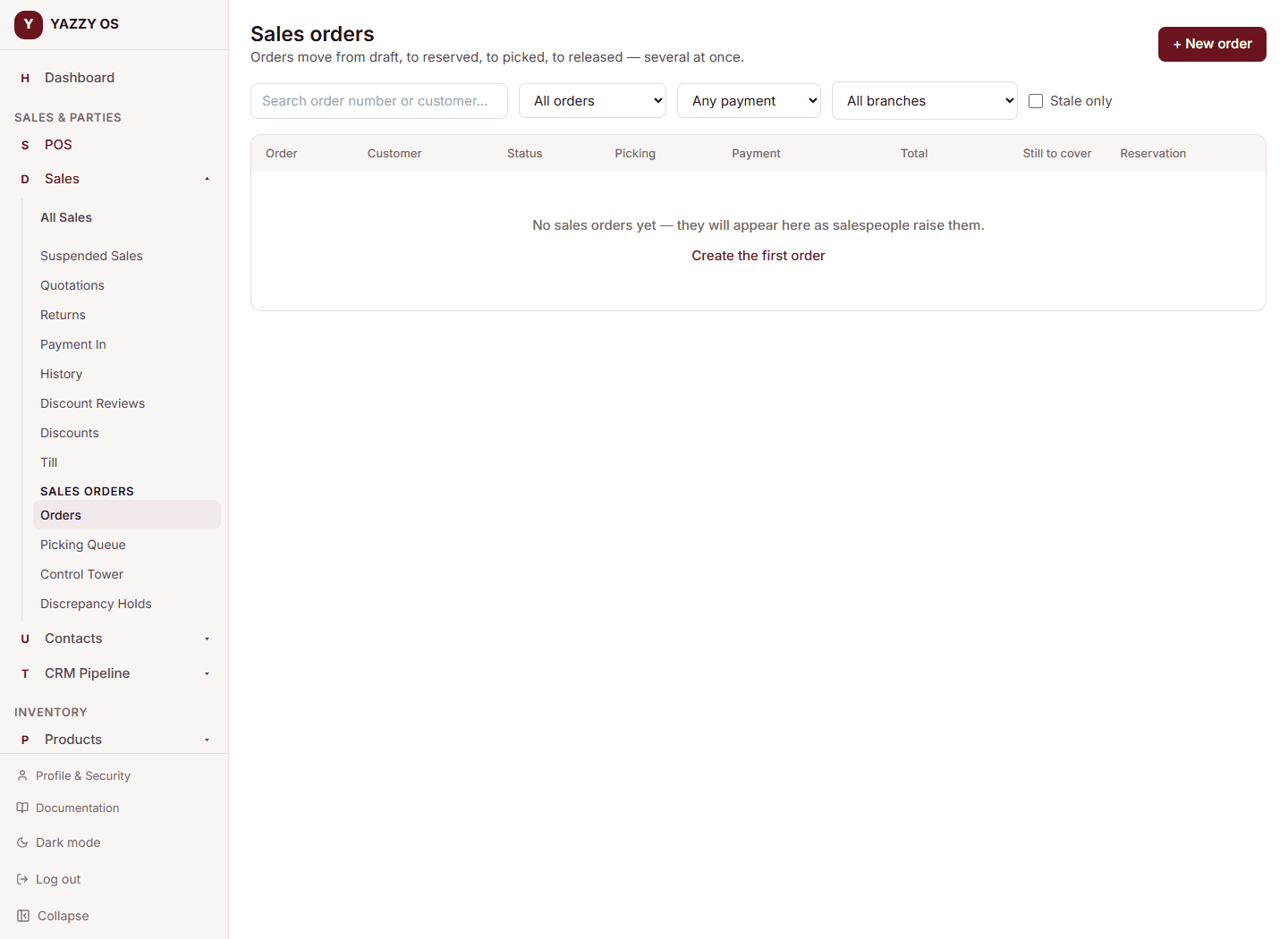
Web and Desktop: open the Sales section in the sidebar. Underneath the usual All Sales/History/Returns list, you'll find Orders, Picking Queue, Control Tower, and Discrepancy Holds.
Mobile app: the same four screens are reached from the strip of buttons at the top of any Sales screen.
Related
- Testing your setup: a full order from start to finish
- Switching between the instant checkout and controlled sales orders
- Creating and submitting a sales order
- Picking and stock shortages
- Payments and credit on sales orders
- Releasing goods on a sales order
- The order control tower and discrepancy holds