Security Lock
Protect your session with a numeric passcode — the screen locks after inactivity and asks for it before you can continue.
The Security Lock is a personal, per-device session barrier. After a set period of inactivity, your screen locks and asks for your 4–6 digit numeric passcode before you can continue. Your session stays fully active in the background — you are not signed out, so no data is lost — the screen just becomes inaccessible until you enter your passcode.
Security Lock is available on Web, Desktop, and Mobile. Each device is independent; locking on the web does not lock the Desktop app.
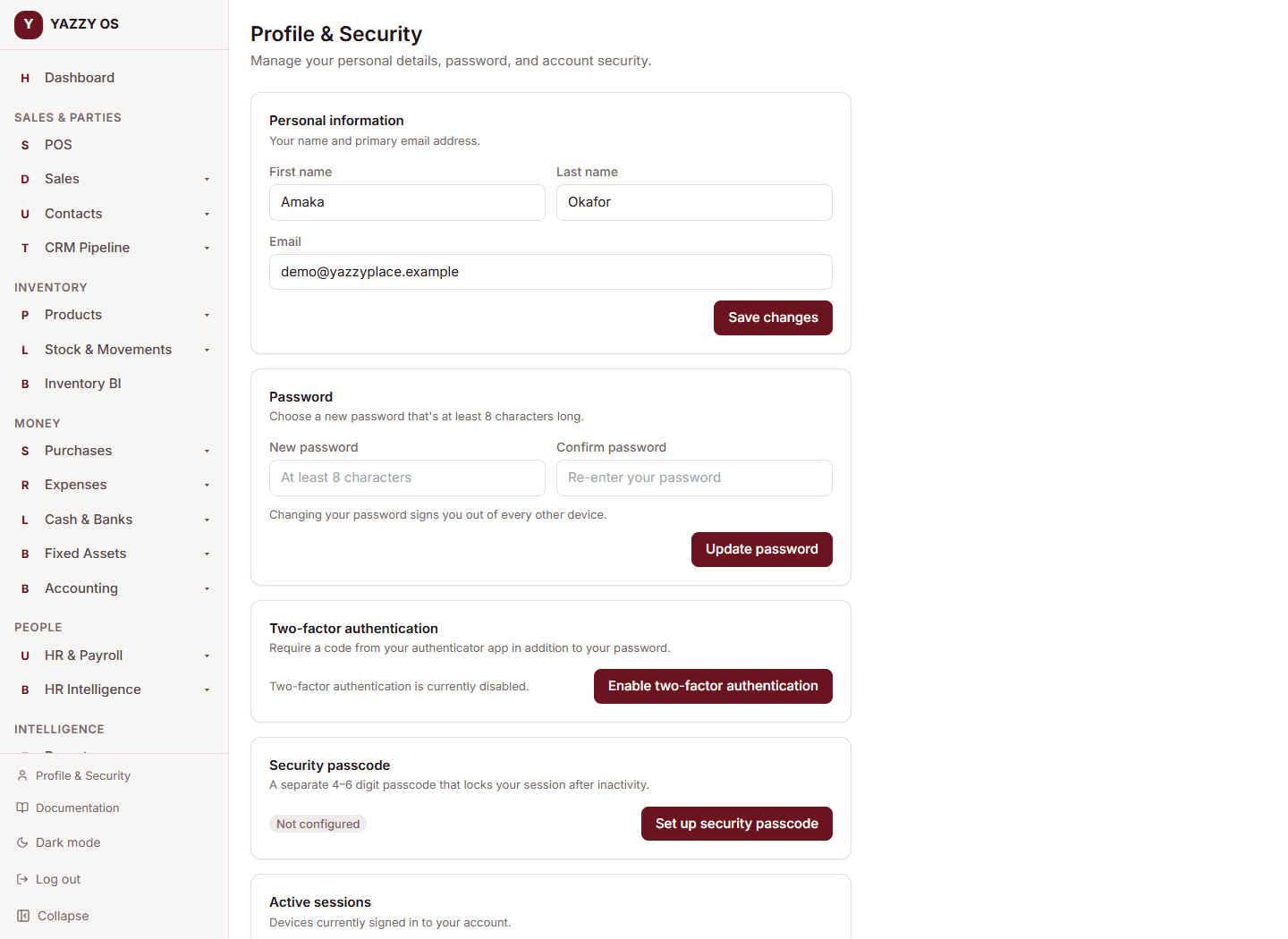
Setting up a passcode
- Go to your Profile page — click your name or avatar in the sidebar (Web/Desktop) or tap Profile in the navigation bar (Mobile).
- Scroll to the Security section.
- Select Set Passcode.
- Enter a 4–6 digit numeric passcode.
- Re-enter the same passcode to confirm.
- Select Save.
Once saved, the auto-lock timer starts immediately. Your screen will lock after the configured period of inactivity.
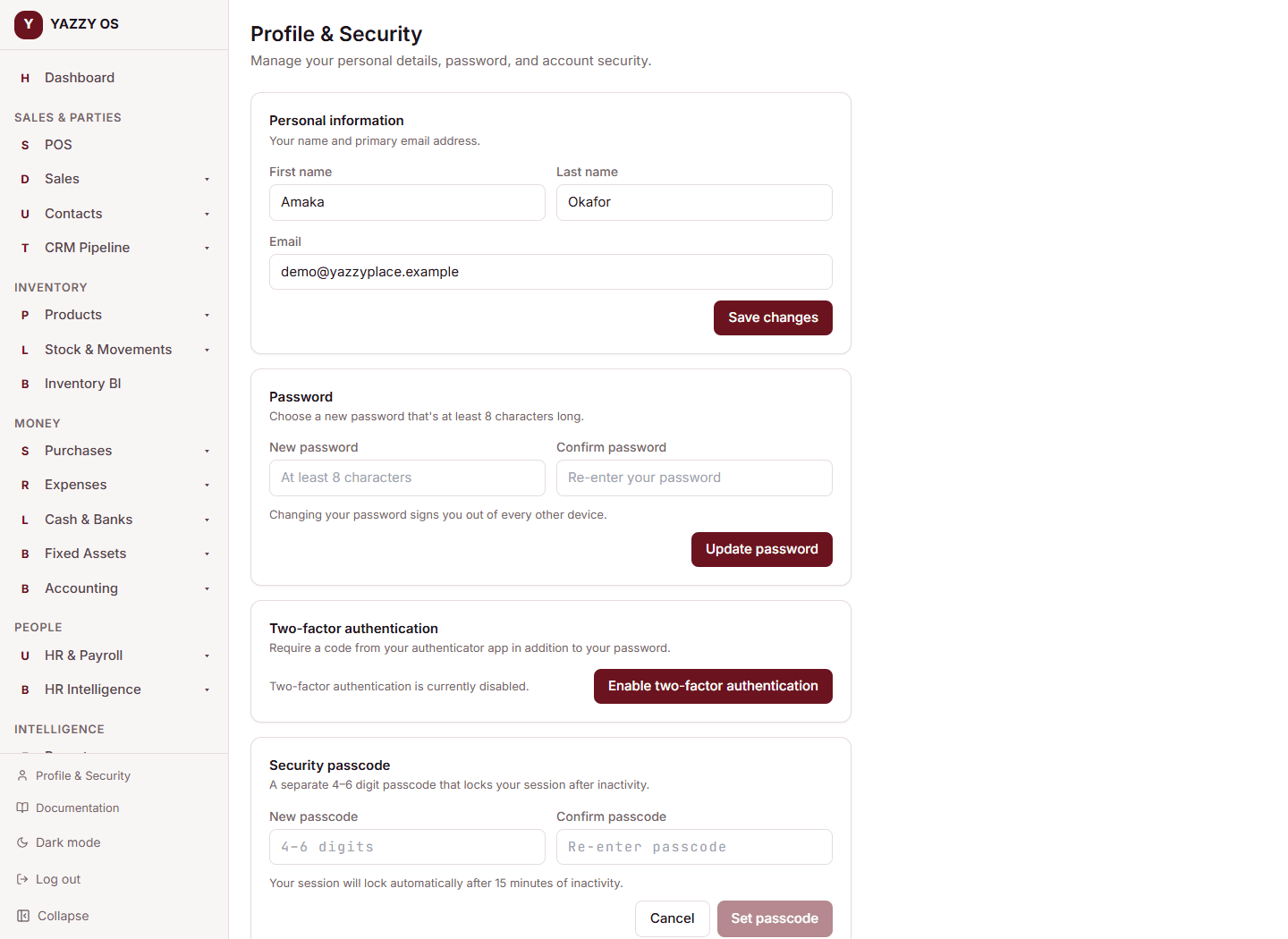
Configuring the auto-lock timeout
After a passcode is set, you can choose how long the app waits before locking:
Web and Desktop: a dropdown in the Security section lets you pick 5, 10, 15, 30, or 60 minutes. The change saves immediately.
Mobile: a row of chips in the Security section shows the same five options. Tap one to apply it.
The default is 15 minutes. The timer resets each time you interact with the app — mouse movement, a keypress, a tap, or scrolling all count as activity.
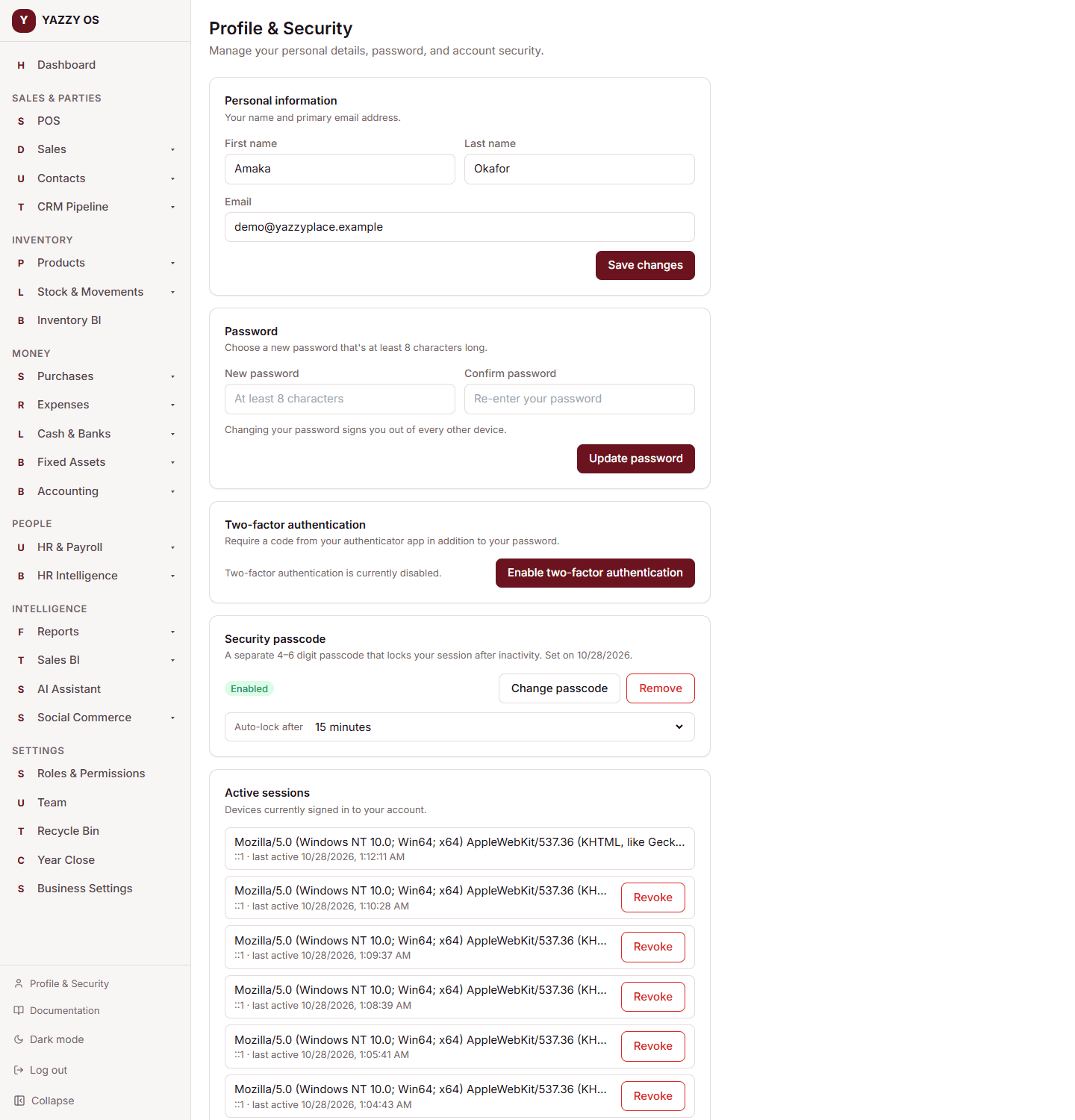
Locking the screen manually
If you're stepping away and don't want to wait for the timer, you can lock immediately:
Web and Desktop: select the Lock now button in the Security section of your Profile page.
Mobile: tap Lock now in the Security section.
📸 Screenshot needed: the Lock Now button on Web.
Unlocking after inactivity
When the timer expires, the lock screen appears over the app. Type your passcode and press Unlock (or Return / Enter) to resume exactly where you left off.
After 5 failed attempts you are put into a brief cooldown. After 10 failed attempts you are signed out entirely and must log in again.
📸 Screenshot needed: the lock screen on Web.
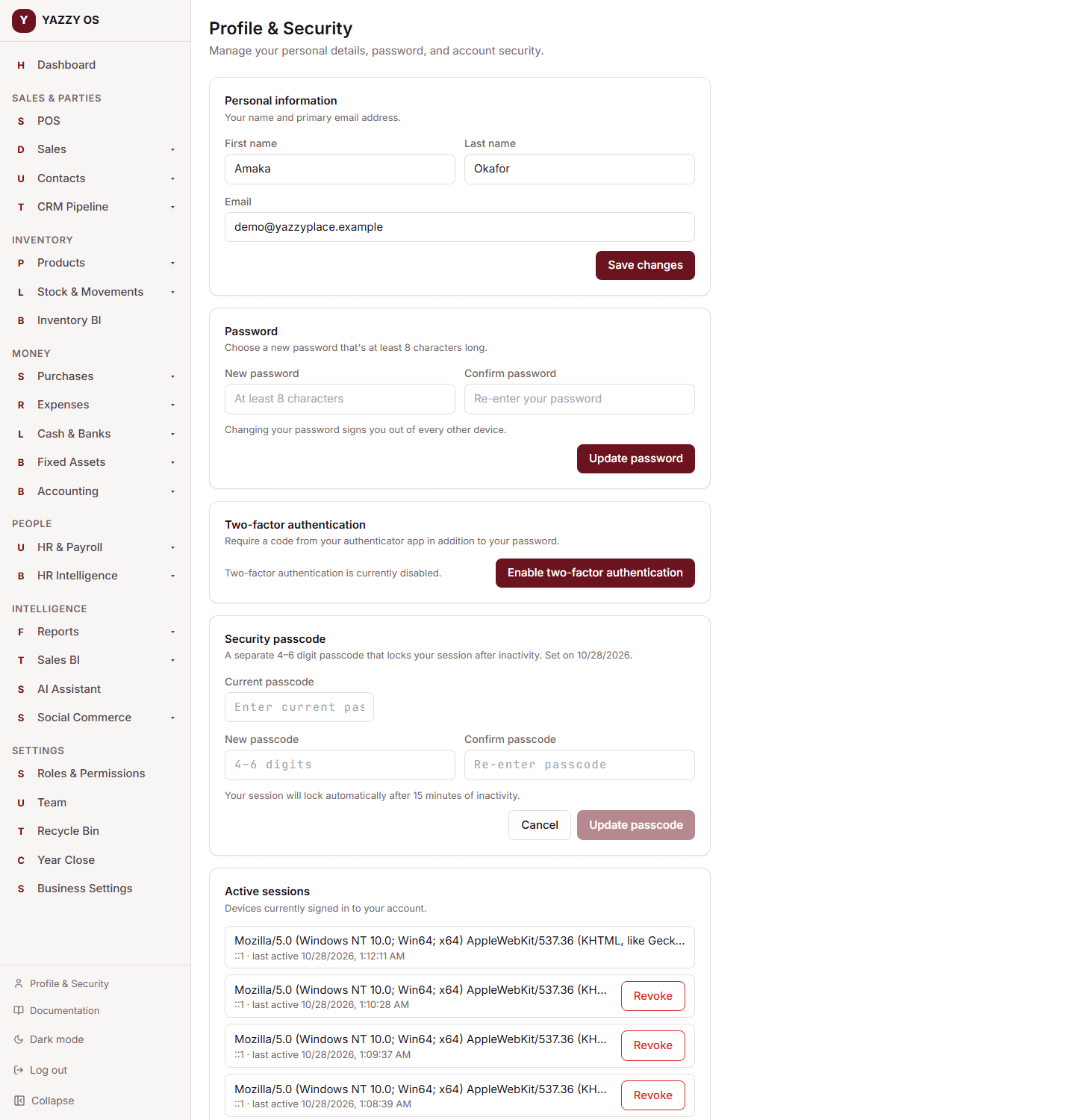
Changing your passcode
- Go to Profile → Security.
- Select Change Passcode.
- Enter your current passcode.
- Enter and confirm your new passcode.
- Select Save.
Removing your passcode
- Go to Profile → Security.
- Select Remove Passcode.
- Enter your current passcode to confirm.
- Select Remove.
Once removed, the auto-lock timer stops and the lock screen will no longer appear on this device.
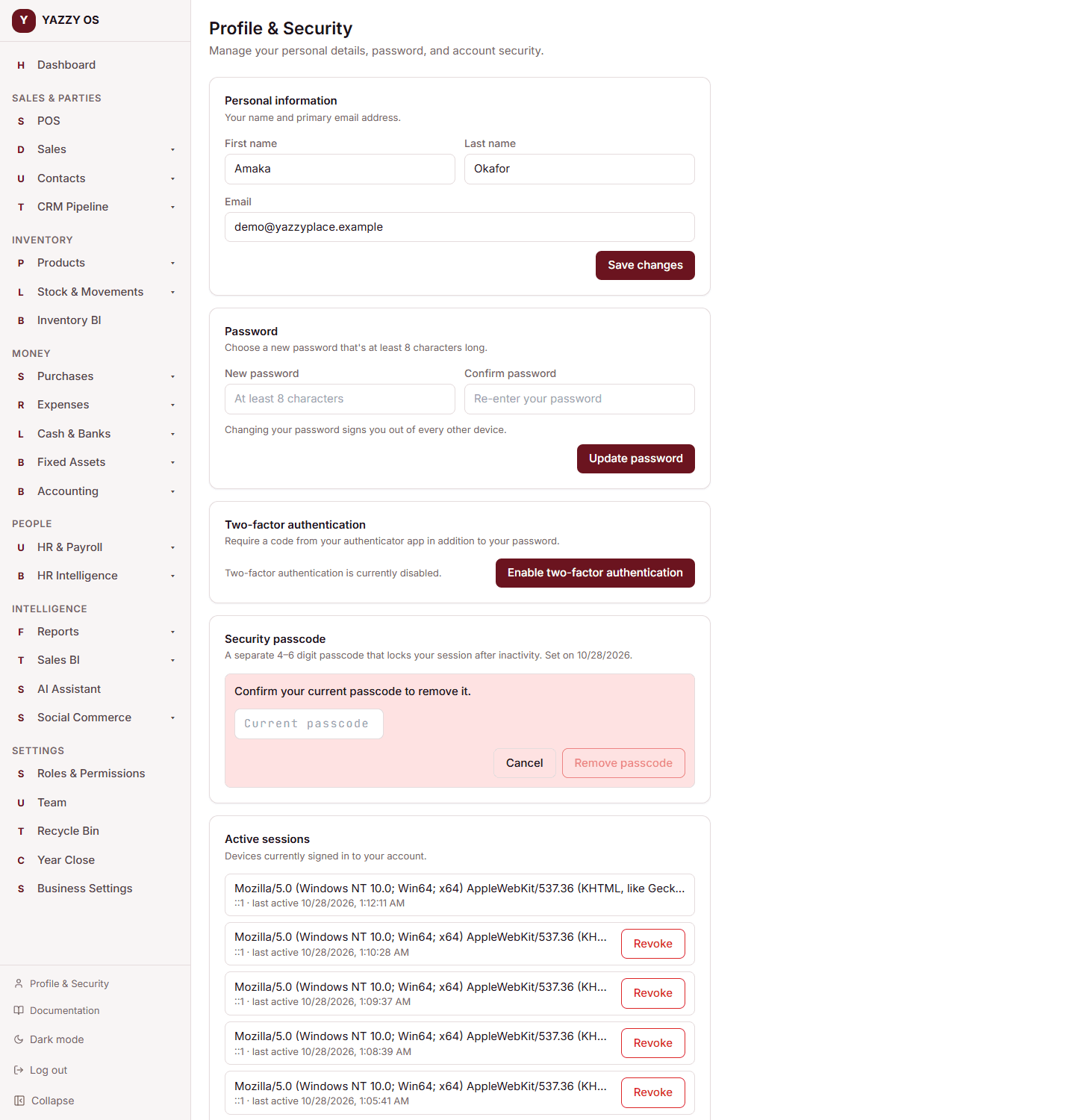
If you forget your passcode
On the lock screen, tap or click Forgot passcode?
- Enter your account password (the password you use to sign in).
- Select Reset Passcode.
- If the password is correct your passcode is cleared and the lock screen closes.
- Go to Profile → Security to set a new passcode.
📸 Screenshot needed: the Forgot Passcode flow on the lock screen.
Things to know
- This is not a logout. Your session and all pending work remain intact. Security Lock only blocks the screen.
- Each device is separate. Setting a passcode on Web does not affect Desktop or Mobile; you set (and forget/remove) them independently.
- The passcode is yours, not the workspace's. Each staff member sets their own. An Owner cannot set or view another user's passcode.
- The timer resets on any activity — moving the mouse, typing, scrolling, or tapping. If you walk away mid-task, the 5-minute timer starts counting from your last action, not from when you navigated to the page.