Payment In — receiving money from a customer
Record money a customer pays you — against their invoices, held as a deposit for later, or both — and link a deposit to a sale.
Payment In is where you record money coming in from a customer outside of a checkout. Every payment gets its own numbered receipt (PIN000001, PIN000002, …) that you can open, print, or save as a PDF.
Use it when a customer:
- pays off an invoice they took on credit;
- pays you ahead of time, before they've bought anything (a deposit);
- pays more than they owe, so the rest should wait as credit; or
- pays several invoices with one transfer.
Open it from Sales → Payment In, or from a customer's Pay action on Contacts.
Recording a payment
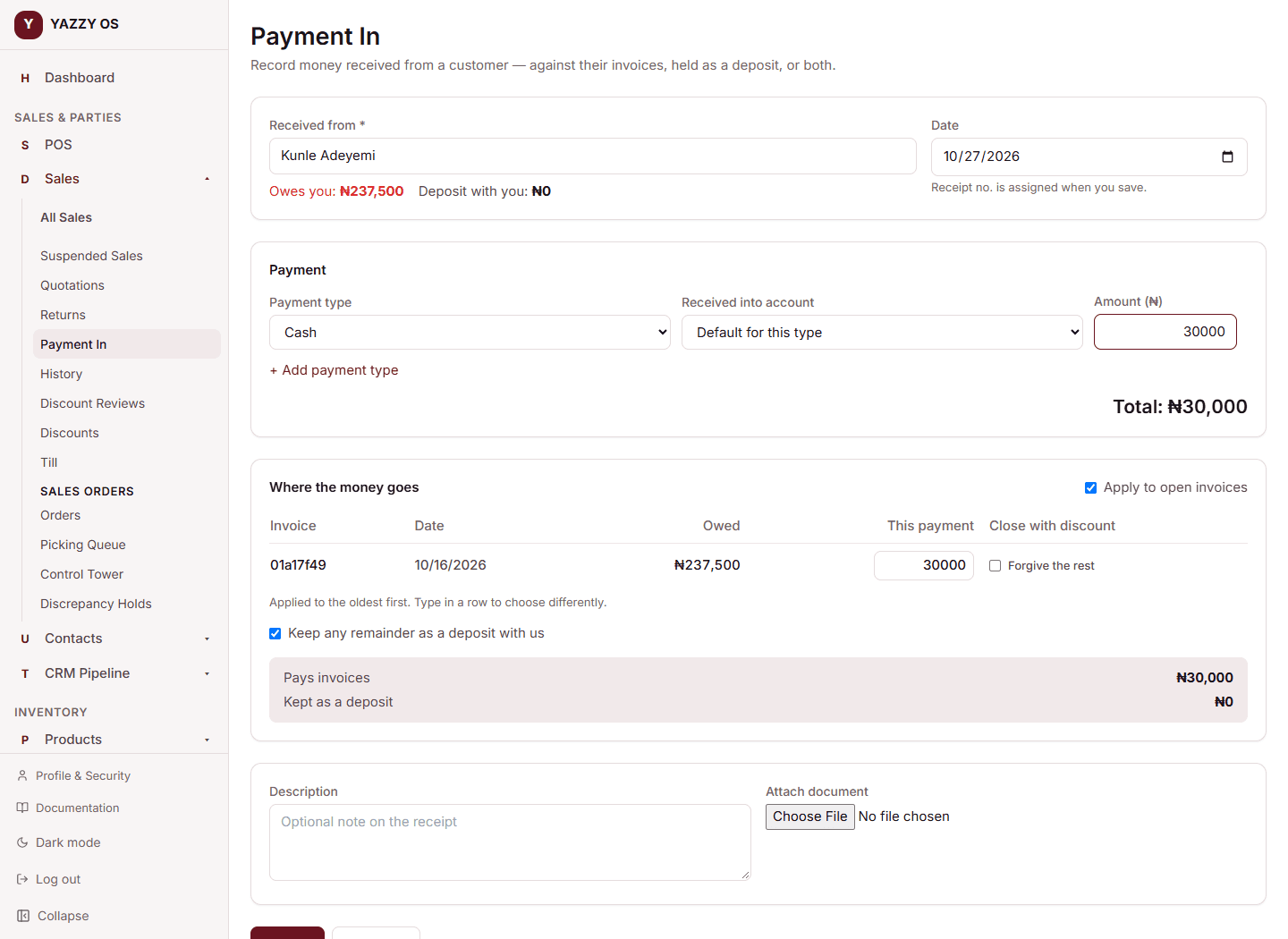
- Select + New Payment In.
- Search for and select the customer. Under their name you'll see Owes you (what they currently owe) and Deposit with you (credit they've already paid in).
- Choose the payment type and the account the money is received into, then enter the amount. To take one payment in two ways — say ₦30,000 cash and ₦20,000 transfer — select + Add payment type. It all goes on one receipt.
- Under Where the money goes, decide what the money does:
- Apply to open invoices (on by default) pays the customer's unpaid invoices, oldest first. To pay specific ones, or specific amounts, type in the This payment column of any row.
- Keep any remainder as a deposit (on by default) holds whatever isn't applied as credit for the customer. Turn it off and YAZZY OS will refuse to save a payment with money left over — it never quietly drops it.
- The box at the bottom shows exactly where the money will land: Pays invoices ₦70,000 · Kept as a deposit ₦30,000.
- Add a description or attach a document if you want, then select Save.
If part of the payment is kept as a deposit, you must choose an account for that line — a deposit is real money that has to land somewhere.
A payment that is only partly recorded
A payment spans several steps (paying invoices, then holding a deposit). If a later step fails after an earlier one already went through, YAZZY OS does not hide it: you'll see a message saying only part was recorded, with a link to the receipt showing exactly what was. Enter just the remaining amount again.
Deposits
A deposit is money a customer has paid you that isn't tied to an invoice yet. You'll see it as Deposit with you when you pick the customer. It never applies itself — you choose when to use it:
- At checkout — on Add Sale, when the customer has a deposit, a Customer deposit available box lets you apply some of it to the sale you're saving (Use maximum fills the most that fits).
- On an existing sale — open the sale and select Link Payment (Link Deposit on mobile). Tick which deposit(s) to use, or leave them all unticked to use the oldest first, enter the amount, and select Apply deposit.
Once linked, the sale shows Paid from deposit PIN000012 · ₦30,000, and the payment list on that sale shows a payment with the type Deposit. No cash moves when you link a deposit — the money was already in your account when it was paid in.
To hand a customer their unused deposit back, see Payment Out.
Forgiving a small balance
If the customer pays slightly less than they owe and you agree to let the rest go, you can close the invoice with a discount. See Settlement discounts.
Seeing your receipts
The Payment In list shows every receipt: date, receipt number, who paid, the total, how much went to invoices, how much was kept as a deposit, any discount given, and its status. Search by receipt number or name, and filter by status or date. Select a receipt number to open the printable receipt.
A receipt can be Completed, Awaiting approval (held because a discount was above your free limit), or Rejected.
Payments recorded in other places — a sale's own Add Payment, or at the till — don't create a Payment In receipt. The list shows what was recorded through the Payment In screen.