Picking and stock shortages
Work the picking queue, verify stock physically, and record a shortage honestly when you find one.
This page is for whoever physically pulls stock for a sales order — usually a stockkeeper.
The picking queue
Go to Sales → Picking Queue to see every order waiting on you, oldest first. You don't need to finish one order before starting the next — several can be in progress at once, and this screen shows every order waiting regardless of who's working which one.
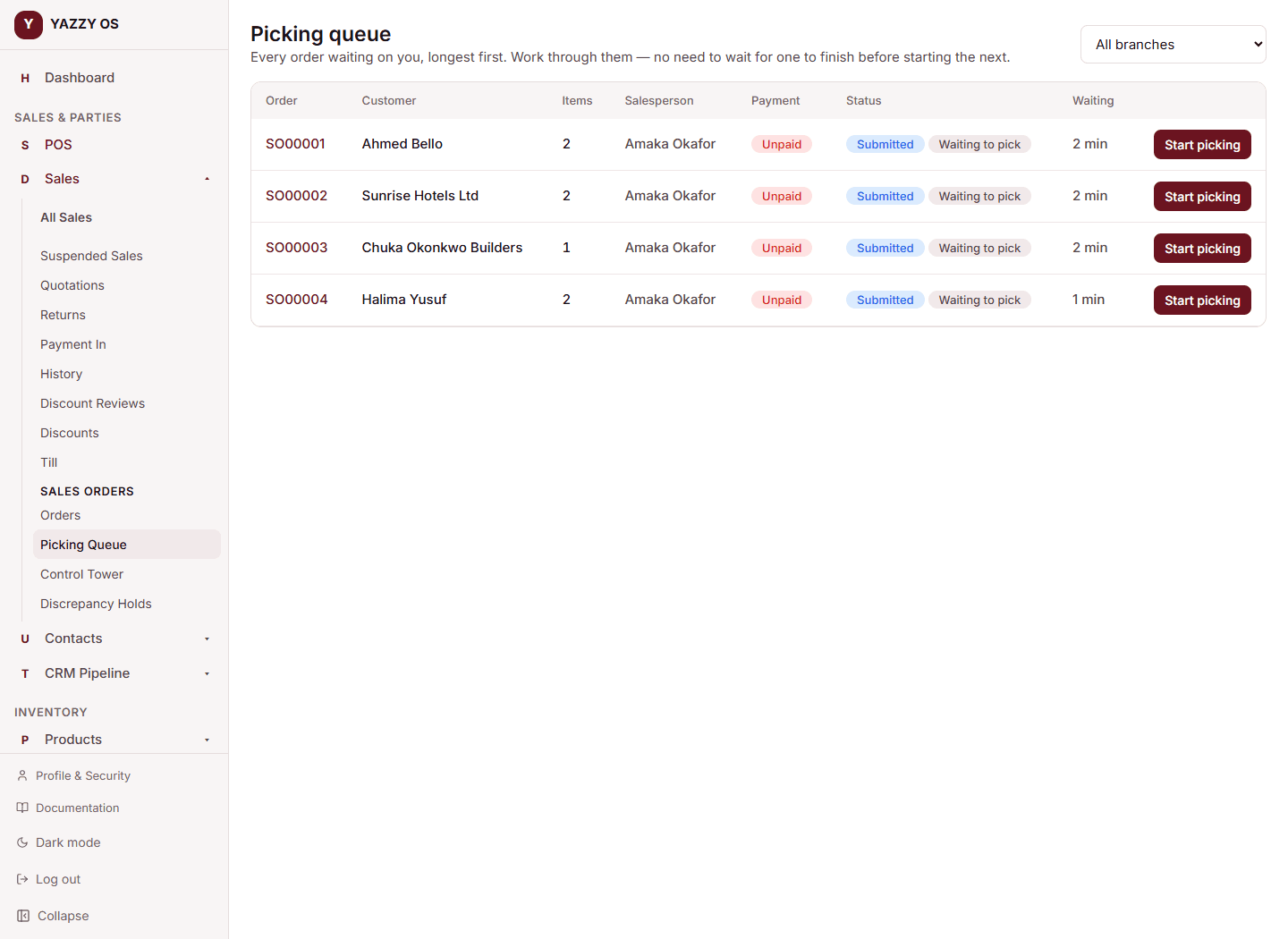
Picking an order
- Open an order from the queue and select Start Picking.
- Physically pull each item, checking the exact product, size, colour, or specification against what's on the order.
- If everything matches, mark the line as picked.
- Once every line is accounted for, select Complete Picking. The order moves to Ready to release.
If an order sits in the queue too long, it gets flagged for your manager on the control tower — so a slow pick is visible and can be chased, not just something the customer quietly waits out.
When the shelf doesn't match the system
If you go to pick 10 units and only find 7, don't just change the order to say 7 — record what actually happened:
- On the order, select Shortage next to the affected line.
- Enter how many you actually found.
- Enter a reason — what you think happened (miscounted earlier, damaged, not on the shelf, etc).
- Submit it.
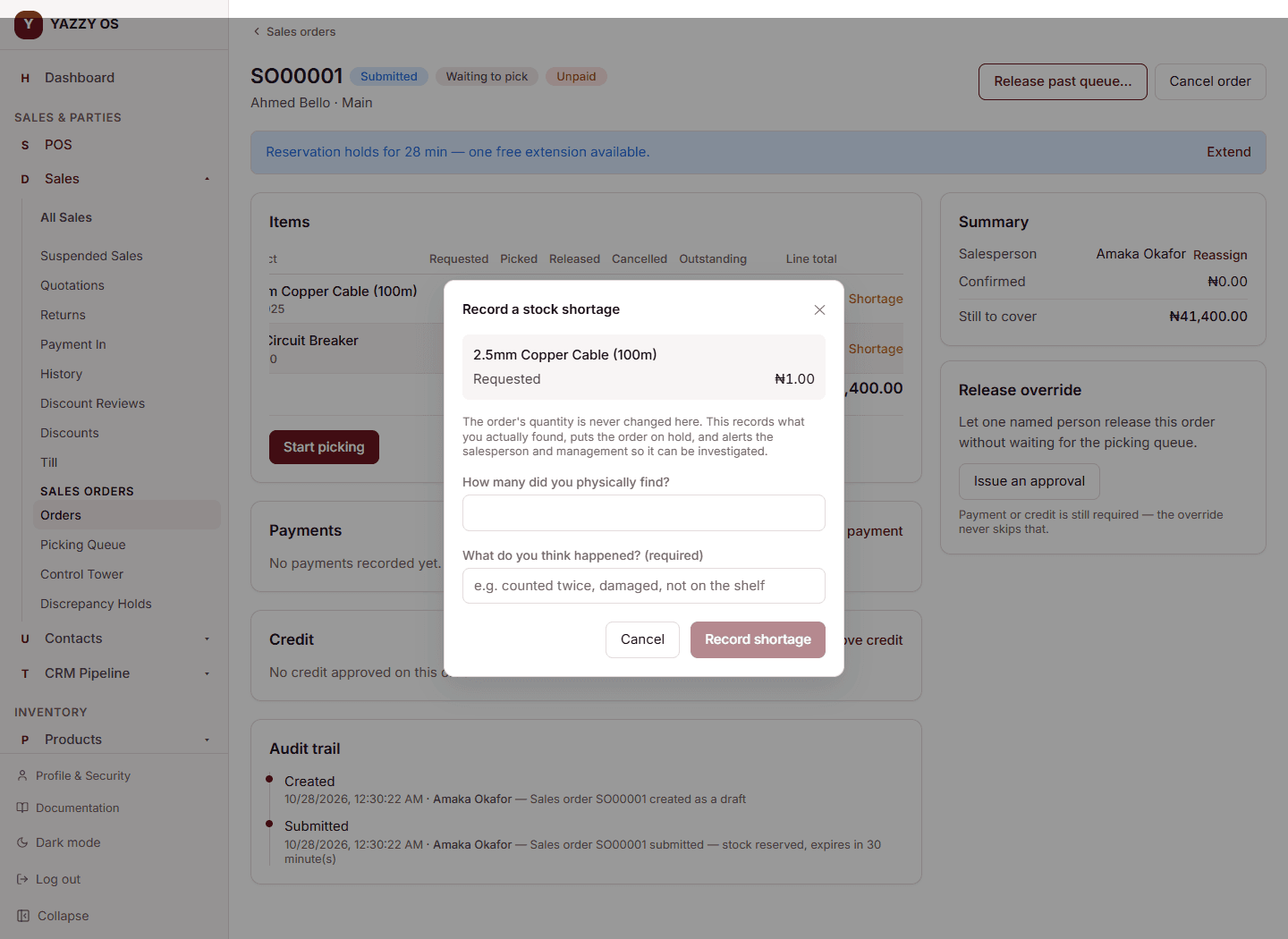
This puts the order on hold and notifies the salesperson and management automatically. The original requested quantity is never lost — it stays on record even after the shortage is dealt with. You can't complete picking on an order with an unresolved shortage; someone with the authority to decide what happens next has to record that decision first — see Resolving a shortage below.
Resolving a shortage
A manager (or whoever has that authority) decides one of three things:
- Ship what was found — the order goes forward with the units that were located; the rest stays on record as still owed, held aside until it's found or written off.
- Revise the order — for when the customer agrees to a different arrangement.
- Cancel the missing units — for when the units are genuinely gone; this corrects your on-hand stock down and removes those units from the order.
Whichever is chosen, it's logged with a reason on the order's own audit trail — nothing about a discrepancy disappears quietly.
If units end up held aside (the "ship what was found" case), they show up on the Discrepancy Holds screen until someone closes them out — either because the missing units turned up, or because an approved stock write-off accounts for them.