Managing customer advance payments
Record money a customer pays you ahead of a sale, apply it to what they owe, and track every movement.
An advance payment is money a customer hands you before there's anything to invoice yet — a deposit, a prepayment, "credit on account." YAZZY OS keeps every advance payment as its own record, so you always know exactly how much a customer has prepaid, how much of it has been used, and how much is still available.
Receiving an advance payment
Advance payments are recorded on the Payment In screen, so each one gets a numbered receipt.
- Go to Contacts → Advance Balance Management and select +, or open Sales → Payment In directly.
- Search for and select the customer.
- Choose a payment method, the account the money is going into, and the amount.
- Under Where the money goes, turn off Apply to open invoices if you want all of it held as an advance, or leave it on to pay their unpaid invoices first and keep only the rest.
- Select Save.
The customer's advance balance goes up immediately, and the payment appears as its own row on the Advance Balance Management list, tagged with its receipt number (for example PIN000007). See Payment In for the full screen.
Seeing your advance balances
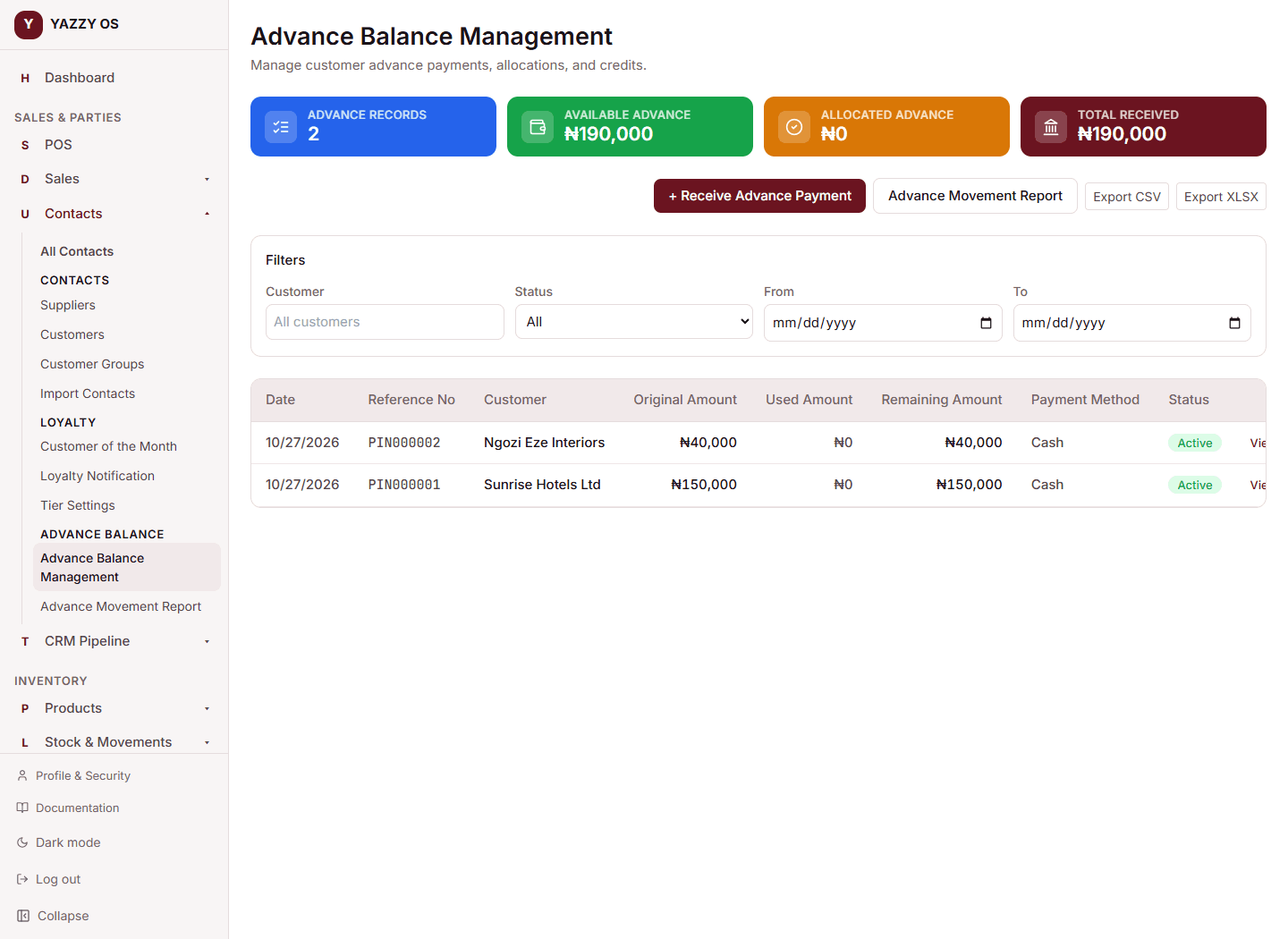
Contacts → Advance Balance Management shows every advance payment you've ever received:
- Advance Records — how many advance payments exist.
- Available Advance — the total still unused across every customer.
- Allocated Advance — the total that's already been applied to a customer's balance.
- Total Received — the lifetime total of every advance payment received.
Use the Customer, Status, and date filters to narrow the list. Each row shows the original amount, how much has been used, how much is left, the payment method, and its status:
- Active — still has an unused balance.
- Fully Used — every naira has been applied.
- Reversed — the payment was refunded back to the customer.
- Refunded — some or all of it was paid back to the customer through Payment Out.
Select View on any row to open that customer's own page, or Reverse on an active payment to refund it.
Applying an advance to what a customer owes
Open the customer's own contact page. Their Advance Balance is shown on the Contact Details card, with an Apply Advance button next to it. Enter how much of their available advance to apply, and it's deducted from their advance balance and credited toward what they currently owe — oldest advance payments are used first.
To apply an advance to one specific sale, open that sale and select Link Payment instead. You choose which advance to use and how much, and the sale shows which one paid it. See Payment In.
Reversing an advance payment
If an advance payment needs to be refunded — the customer changed their mind, or it was recorded in error — open Contacts → Advance Balance Management, find the payment, and select Reverse. Choose which account to refund the money from and select Reverse Payment. Only the unused portion of a payment can be reversed — if part of it has already been applied, that part stays applied.
To refund only part of a customer's advance, use Payment Out → Refund a customer's deposit instead. A large refund — at or above your deposit refund limit — is held for approval before any money leaves, and Reverse follows the same limit.
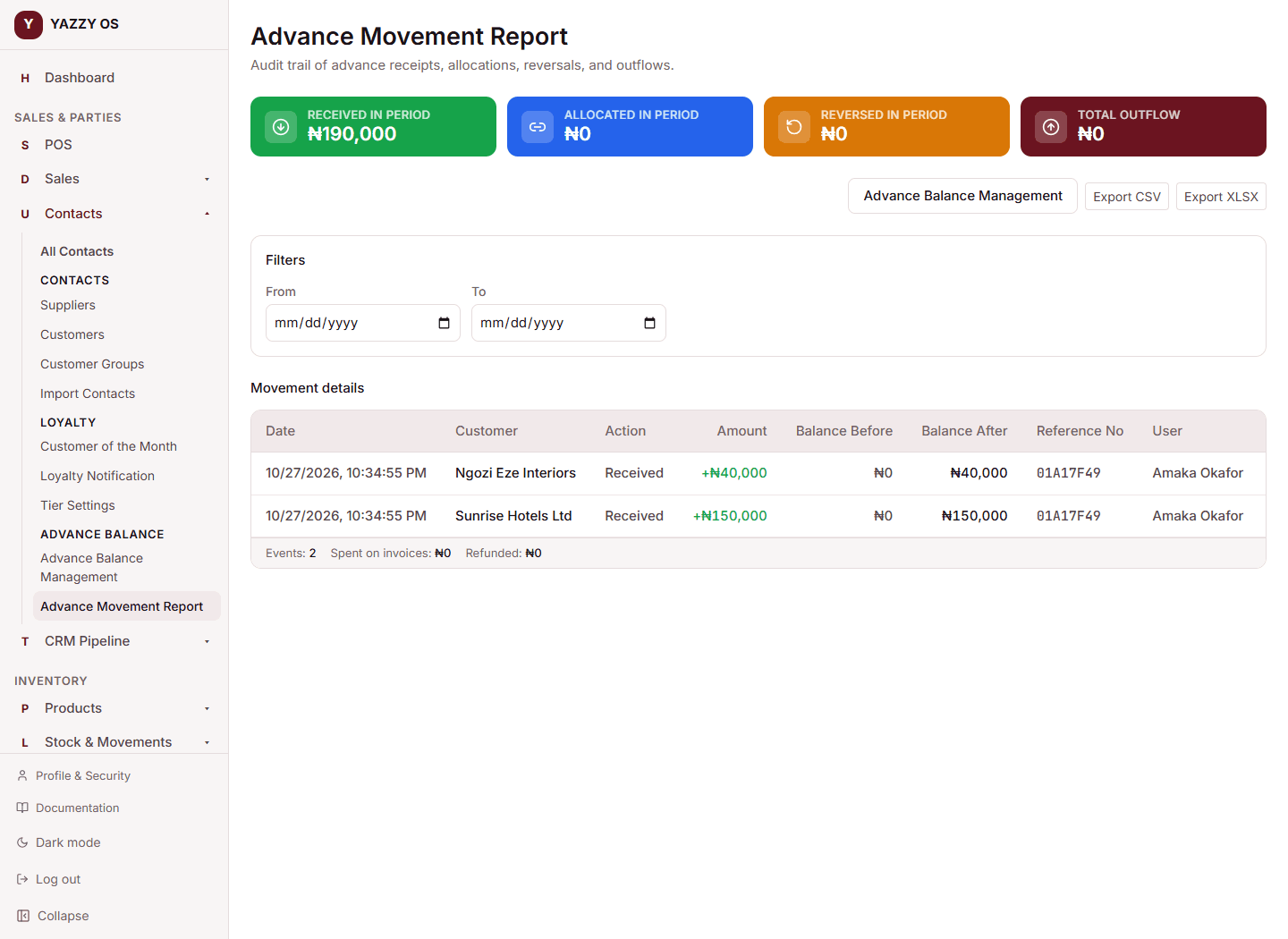
Advance Movement Report
Contacts → Advance Movement Report is the full history behind every advance balance — every payment received, every amount applied, and every reversal, in order, with who did it and when.
The summary cards show, for the period you're viewing:
- Received in Period — new advance payments taken in.
- Allocated in Period — advance credit applied to what customers owed.
- Reversed in Period — advance payments refunded back out.
- Total Outflow — allocated plus reversed, i.e. everything that left the advance pool.
Filter by date range to check a specific week or month, and use Export to download the report as a CSV or Excel file.