Importing products from a CSV file
Add many products at once instead of one by one.
If you're setting up your catalog for the first time, or adding a large batch of new products, import them from a spreadsheet instead of creating each one by hand.
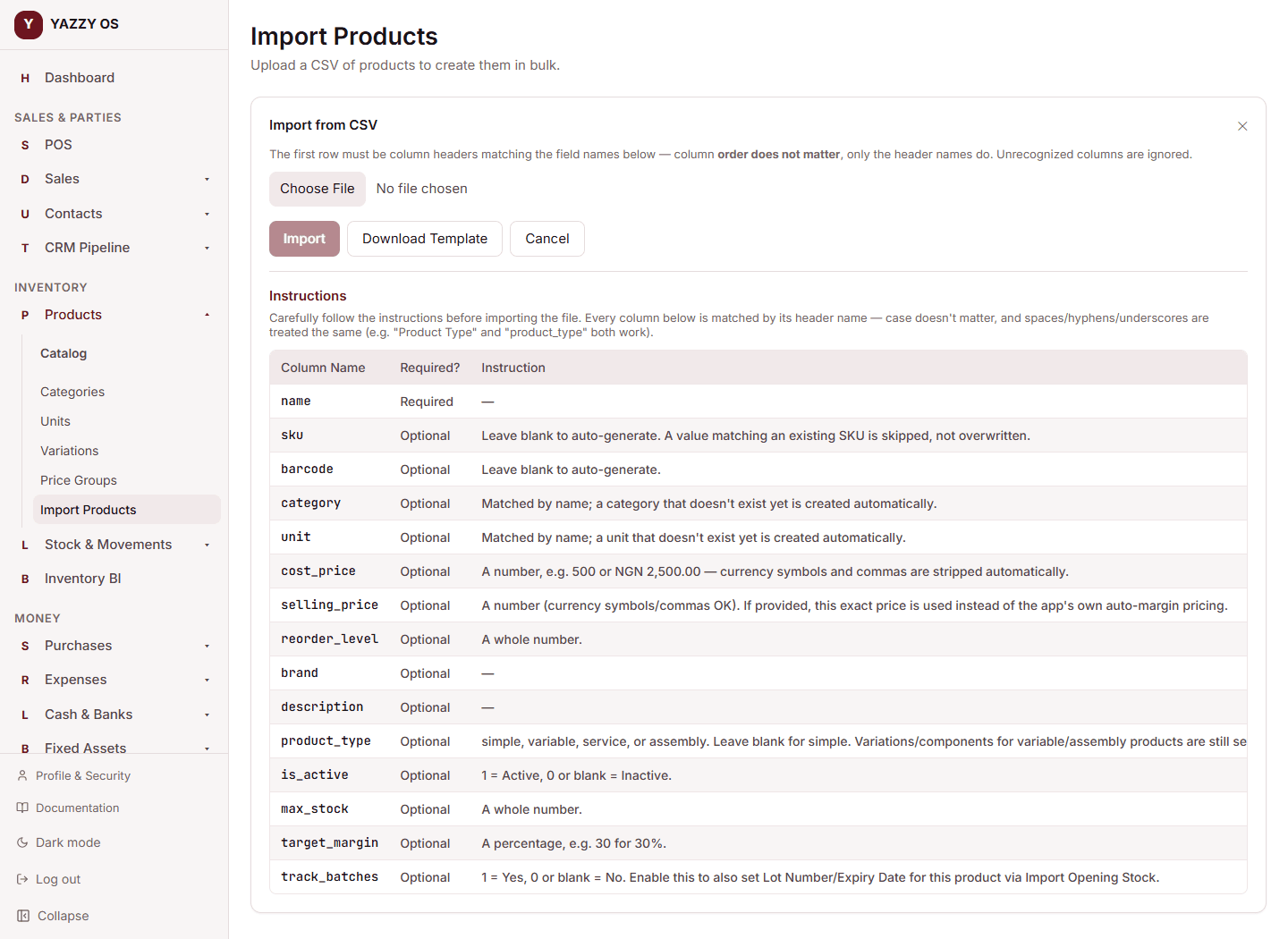
- Go to Products → Import Products (or select Import from the Products list).
- Select Download Template to get a CSV file with the right column headers, and an instructions table showing exactly what each column means.
- Fill it in — one row per product. At minimum, give each product a name; everything else is optional and filled in with a sensible default if left blank:
- SKU / barcode — auto-generated if left blank. A SKU matching an existing product is skipped, not overwritten.
- category / unit — matched by name; typing one that doesn't exist yet creates it automatically.
- cost price / selling price — plain numbers. A selling price you provide is used exactly as given, instead of the app's own auto-margin pricing.
- reorder level, brand, description.
- product_type —
simple,variable,service, orassembly. Leave blank for a simple product; variations/components for a variable or assembly product are still set up afterward on the product's own page. - is_active —
1for active, blank or0for inactive. - max_stock, target_margin (a percentage, e.g.
30for 30%). - track_batches —
1to turn on batch/lot tracking for this product, so you can later set its Lot Number and Expiry Date via Setting your opening stock.
- Save the file, then select Choose CSV file and pick it.
- Review the preview, then select Import.
What happens next
The import runs in the background — you can keep working while it finishes. When it's done, you'll see how many products were created, how many were skipped as duplicates, and details for any row that failed, so you can fix just those and re-import them.
A category or unit you type that doesn't already exist is created automatically.