Doing a physical stock count
Count what's actually on your shelves and reconcile it against YAZZY OS's records.
A stock count compares what's physically on your shelves to what YAZZY OS has on record for a branch, so you can catch and correct any mismatch — theft, damage, or a recording mistake.
- Go to Stock → Stock Adjust.
- Select Start Count.
- Choose the branch you're counting by name and add an optional note.
- Select Start Count to confirm.
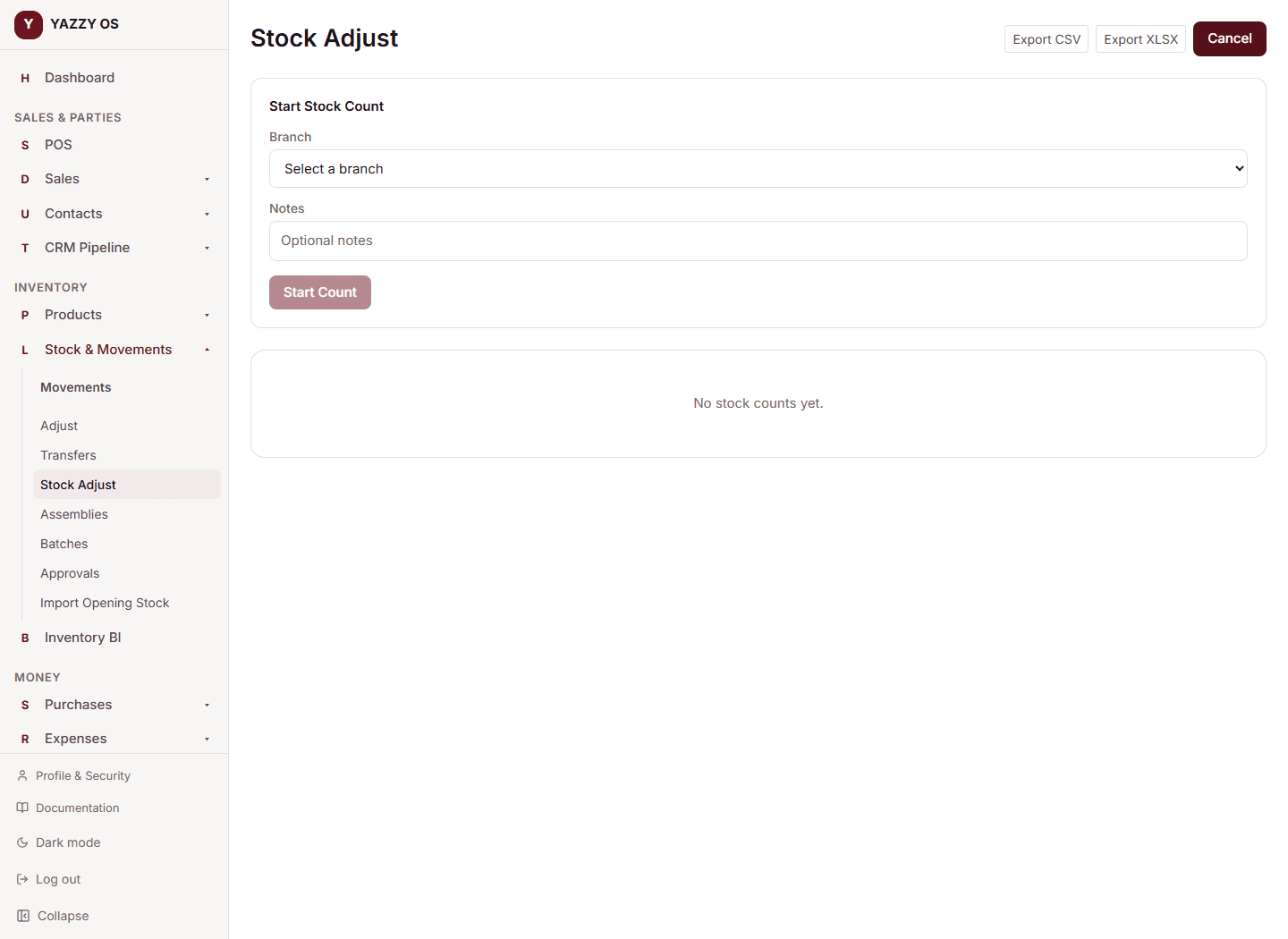
A count starts as a draft, then moves to in progress while you enter what you actually counted.
Entering your counted quantities
- Open the count from the list.
- For each product line, enter the quantity you actually counted. YAZZY OS shows the system's on-record quantity right alongside it, plus the variance between the two as you type.
- Once every line has a counted quantity, select Complete Count.
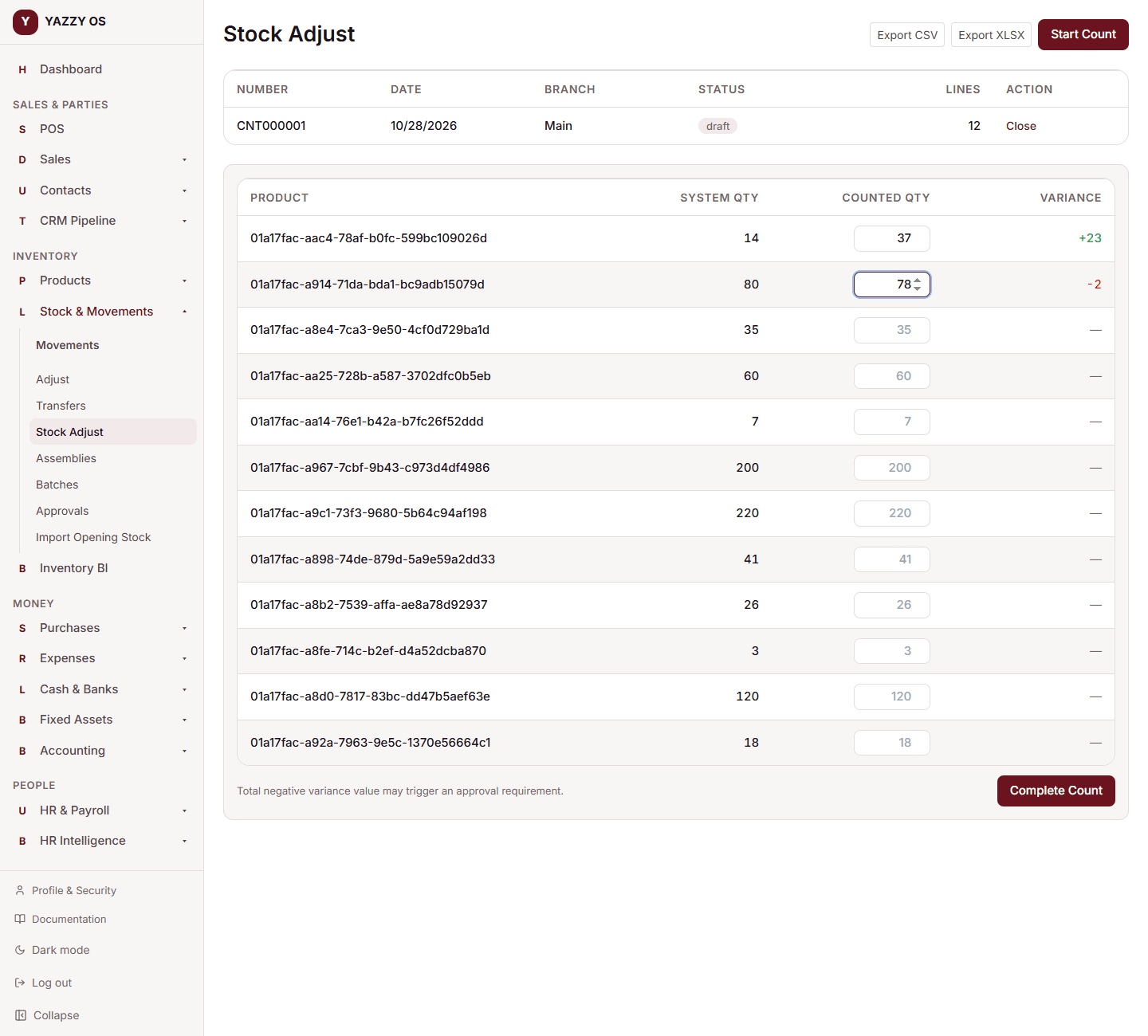
Completing it creates a stock adjustment for every line where your count didn't match the system's record, so your stock levels reflect what you actually counted.
If the variance is large
If the total value of what's missing crosses your workspace's write-off threshold, the count moves to Pending Approval instead of completing immediately — an Owner or Manager needs to approve it before the stock adjustment is applied.
Counting items with two units
On Option 2 (primary and secondary units) the count accepts parts of the primary unit: type 9.85 for 9 cartons and 17 packs. The System Qty is shown as "9 Carton 17 Pack" and the Variance in the same form. On Option 1 only whole numbers are accepted. See Choose how your company uses units.