Payments and credit on sales orders
Record and confirm payment, approve credit, and handle refunds and partial payments on a sales order.
Payment and stock are checked separately on a sales order — the goods can be fully picked and verified and still not be releasable, because the money side isn't settled yet. This page covers that money side.
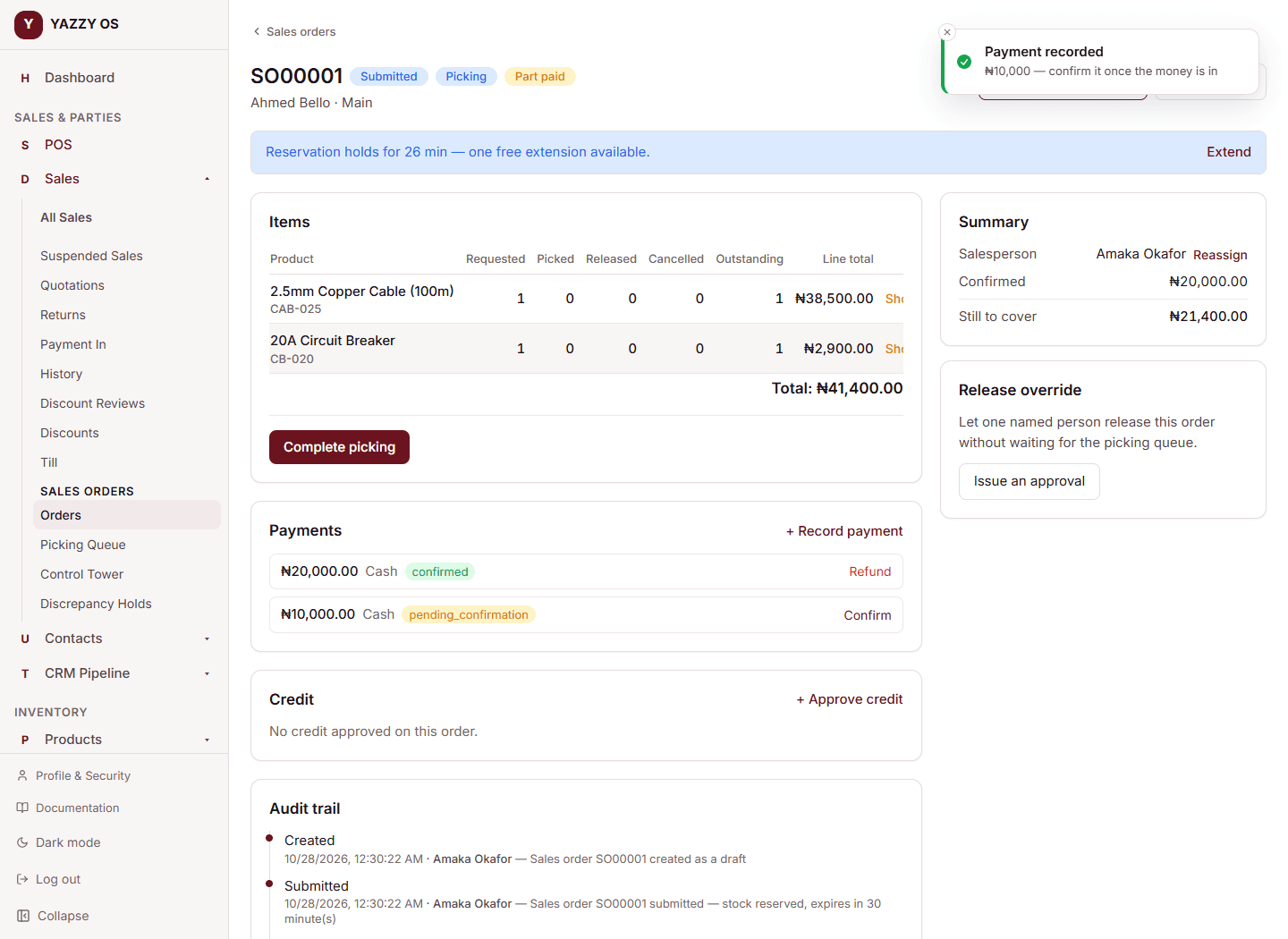
Recording a payment
- Open the order and select Record Payment under Payments.
- Choose how it was paid and enter the amount.
- Save it.
A payment you record isn't counted yet — it needs to be confirmed once the money has actually arrived (the cash is in the drawer, the transfer has landed). Select Confirm next to the payment once that's true.
Part payments
A customer doesn't have to pay the full amount in one go. Record as many payments as needed — each one is tracked individually, and the order's own summary always shows how much is still owed. An order can't be released in full while an amount remains uncovered, unless the remainder is covered by approved credit instead.
If an order is only partly picked and partly paid, releasing it only takes its fair share of what's been paid so far — the rest of the payment stays applied to whatever's released later. Nothing is charged twice and nothing is left uncounted.
Approving credit
Credit lets an order be released even though it isn't fully paid, on the understanding the customer will pay later.
- Open the order and select Approve Credit under Credit.
- Enter the amount, the reason, and optionally terms and a due date.
- Save it.
Credit can only be approved for a named, saved customer — never for a walk-in — since someone has to actually owe the money. Whoever takes the order or the payment is not the person who should be approving credit for it; on most workspaces that's a manager's decision, kept separate from the till on purpose.
An active credit approval can be revoked with a reason if it's no longer appropriate — the order then needs payment again to be released.
Refunds
If a confirmed payment needs to be reversed — a cancelled order, an overpayment, a customer changing their mind — open the payment and select Refund. Enter the amount and a reason. A refund can be partial; the payment's record keeps track of how much of it has been refunded so far.