Set up an item with two units
Give an item a primary unit, a secondary unit and a conversion, with prices for each.
This guide assumes your company is on Option 2 — see Choose how your company uses units.
The example used throughout: you buy product ABC by the carton, each carton holds 20 packs, and you sell both cartons and single packs.
Step 1 — Create your units
- Go to Products → Units.
- Select New and add each unit you use, for example Carton (symbol ctn) and Pack (symbol pk).
You create each unit once and reuse it on every item. The units you already have are untouched.
Step 2 — Set the primary and secondary unit on the item
- Go to Products and select New (or open an existing item and select Edit).
- Fill in the name, prices and the rest as usual.
- Set Unit to Carton. This is the primary unit: the unit the item's stock is counted and stored in. You choose it for each item — a different item might use Piece as its primary unit.
- In the Secondary unit (optional) section, set Secondary unit to Pack.
- In the box Pack in 1 Carton, enter 20.
- Set prices (see the next step).
- Select Create Product (or Save Changes).
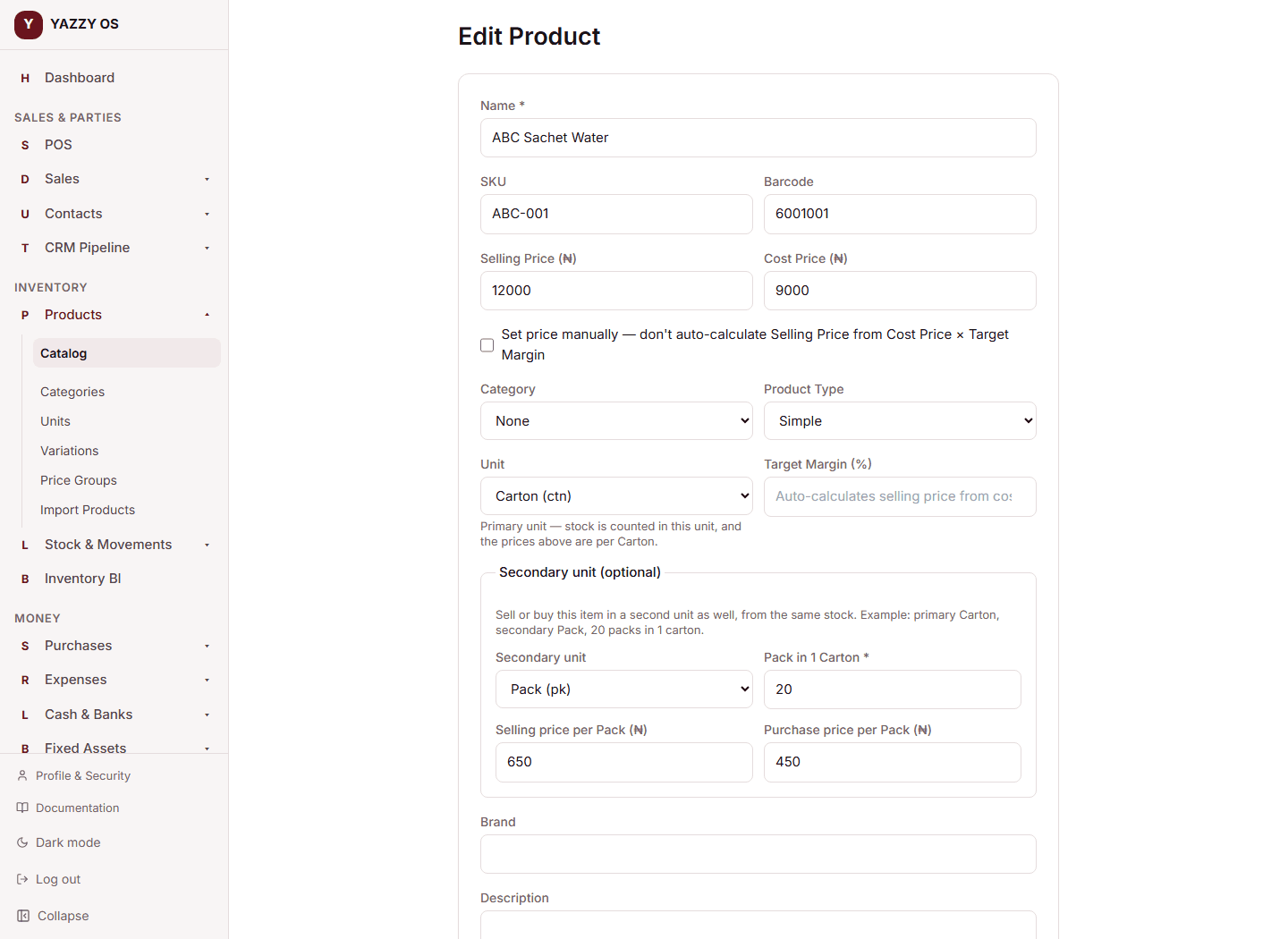
You will see the Secondary unit section only while Units mode is Option 2. If you select a secondary unit you must also enter the conversion; YAZZY OS refuses a save that has one without the other.
The same fields appear on the Web, Desktop and mobile apps. On mobile the section is on the New Product and Edit Product screens.
Step 3 — Set the prices
- Selling Price and Cost Price at the top are always per primary unit — here, per carton: ₦12,000 selling, ₦9,000 cost.
- Under Secondary unit, Selling price per Pack and Purchase price per Pack are optional.
- Leave them blank and YAZZY OS works them out: ₦12,000 ÷ 20 = ₦600 a pack.
- Type your own to charge a different rate per pack — for example ₦650, because smaller units usually carry a small premium. The box shows the worked-out value as its hint.
Step 4 — Add stock
Stock is one pool, always held in the primary unit. Add opening stock or receive goods as normal. If you start with 10 cartons, the item shows 10 Carton.
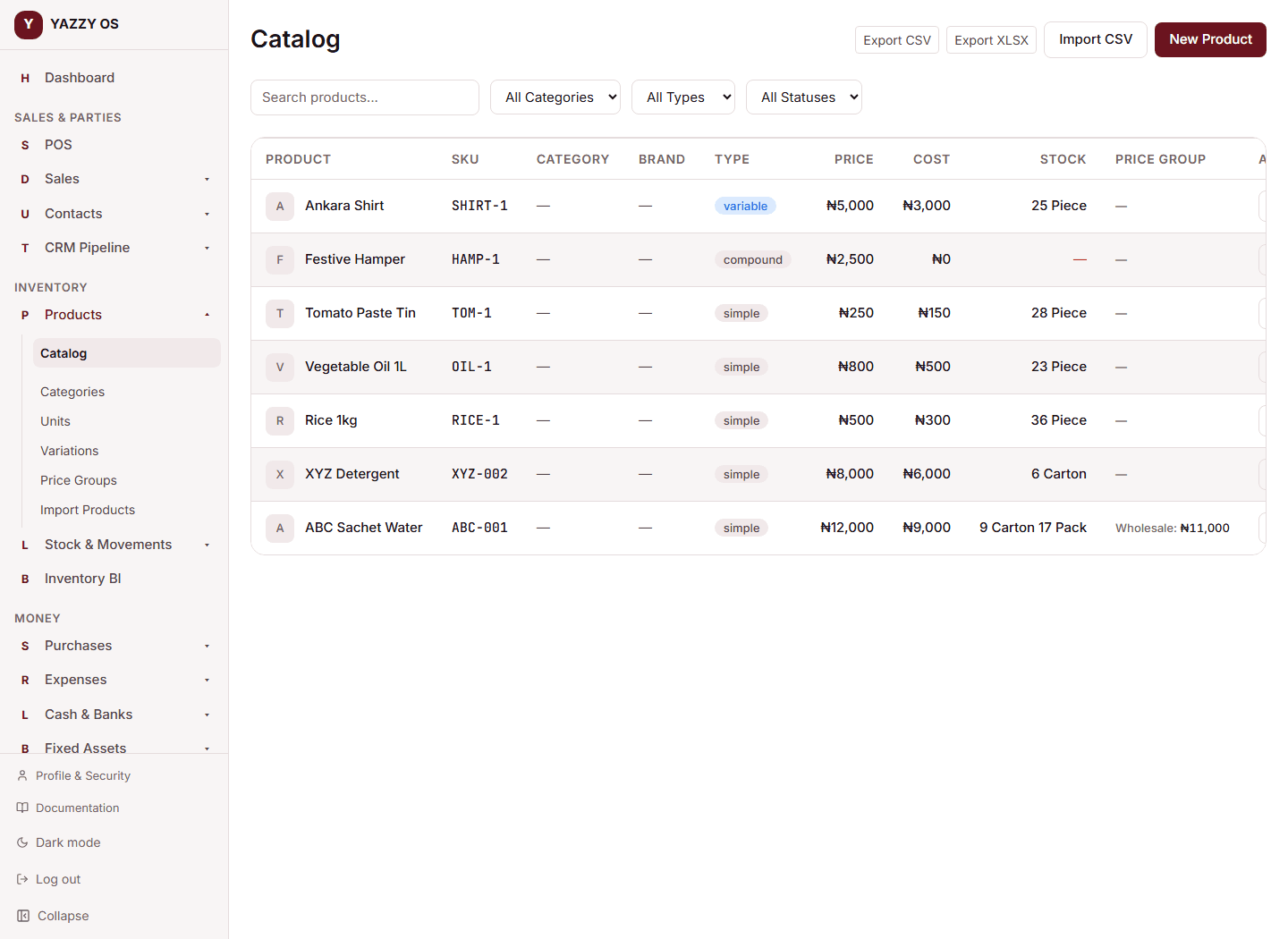
When you later sell 3 packs, stock becomes 9.85 cartons, which the product list shows as 9 Carton 17 Pack.
Prices per selling price group
If you use selling price groups (Wholesale, Retail…), each group can price both units:
- Open the item and find Selling Price Groups.
- For each group, type the price per carton in the first box and the price per pack in the second box, then select Save.
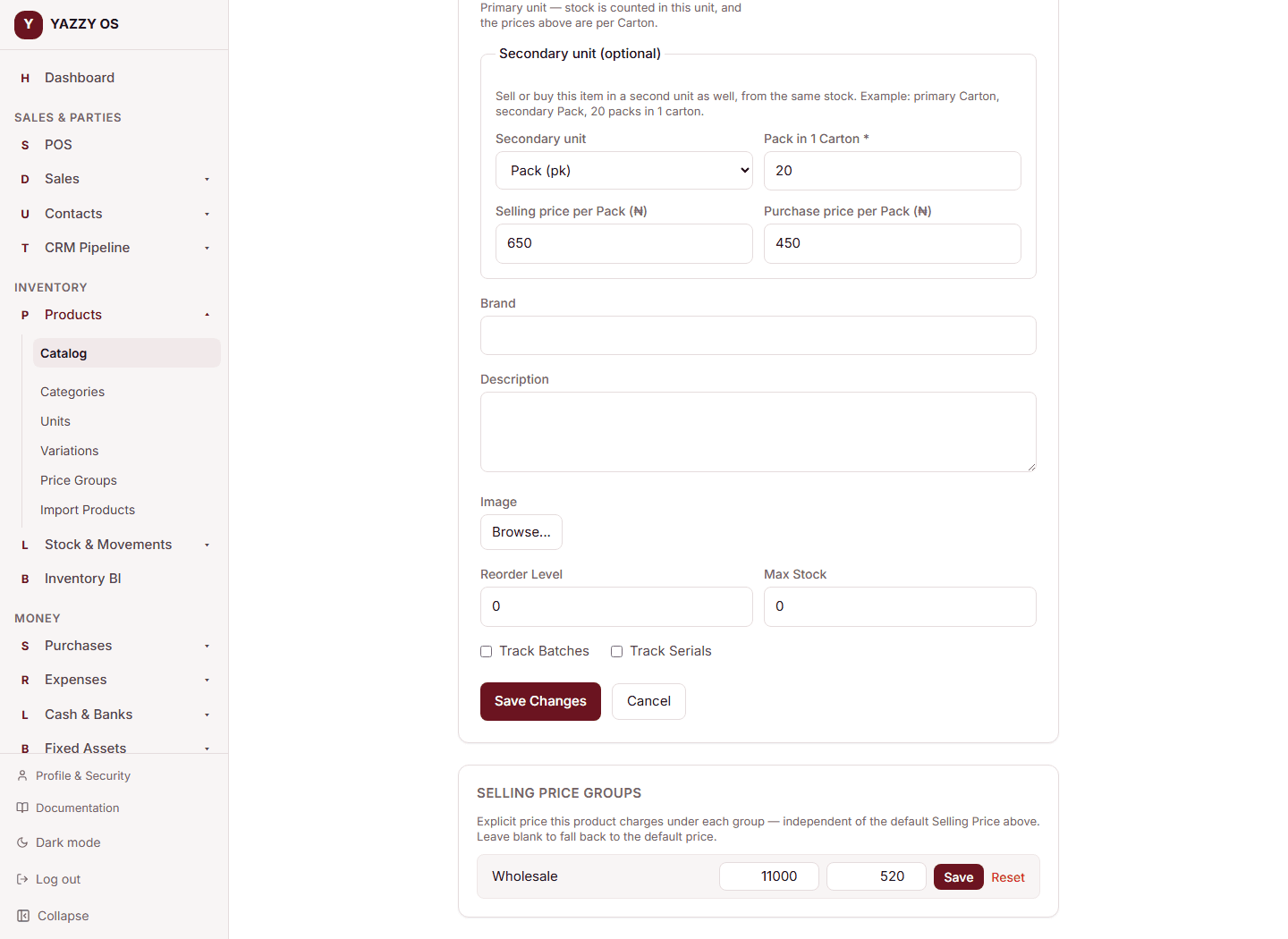
A group with no pack price falls back to the item's own pack price (₦650 or the worked-out ₦600) — the same way a group with no carton price falls back to the item's carton price.
Changing things later
| You want to change | What happens |
|---|---|
| The secondary unit or the conversion | Allowed any time. It only affects lines you enter from now on; old documents keep what they recorded. |
| The prices | Allowed any time, as normal. |
| The primary unit | Allowed only while the item has no stock movements and no documents. Once it has history, YAZZY OS refuses, because changing it would silently relabel every existing count (10 cartons would become 10 pieces). Create a new item for the new unit instead. |
| Remove the secondary unit | Set Secondary unit to None and save. Past documents are unaffected. |
Reorder level and Max stock
On Option 2 these two boxes accept parts, in the primary unit. A reorder level of 2.5 means 2½ cartons.
What if a screen shows a decimal?
Reports and a few older screens show stock as a plain decimal in the primary unit (9.85) rather than "9 Carton 17 Pack". Product lists, product detail, stock movements, stock counts, stock history and the checkout screen show the unit breakdown.