Creating and submitting a sales order
Put together a sales order and reserve the stock it needs.
This page assumes your workspace uses controlled sales orders rather than the instant checkout.
Creating a draft
- Go to Sales → Orders.
- Select New Order.
- Choose the branch the goods will leave from.
- Choose the customer — search for an existing one, or leave a walk-in name if this customer isn't a saved contact. A walk-in customer can pay now or after picking, but can't be given credit later, since credit needs a named customer.
- Search for each product and add it to the order. As you add a product, you'll see how much of it is actually available — on hand, how much is already reserved by other orders, and what's left for you.
- Set the quantity and price for each line.
- Add a discount if one applies.
- Select Save as Draft to keep working on it later, or Submit Order to send it on straight away.
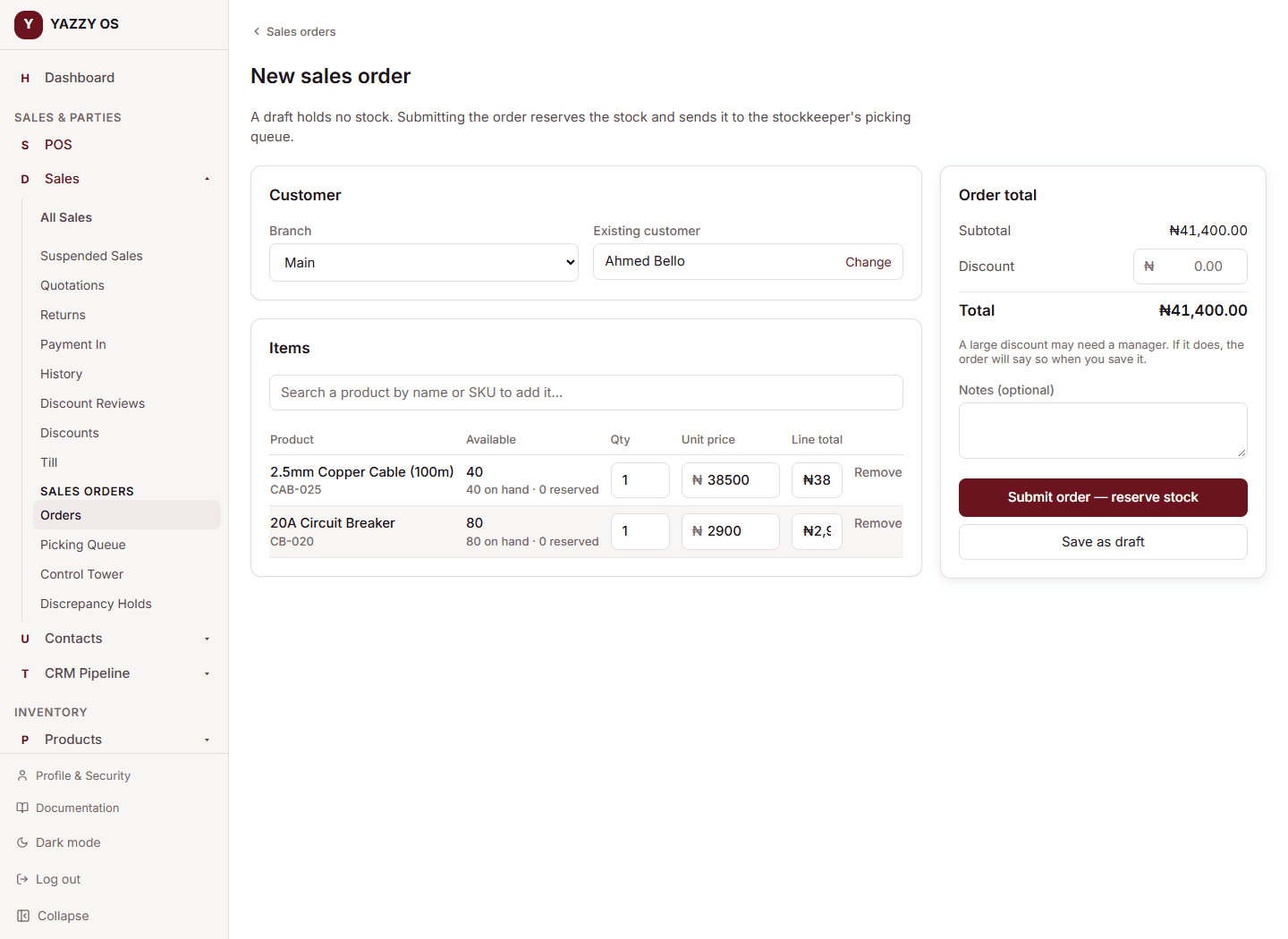
A draft reserves nothing. You can leave an order as a draft indefinitely without it holding up any stock — the reservation only happens once you submit.
What submitting does
Selecting Submit Order reserves the stock the order needs and sends it to the picking queue. From this point:
- The reserved units are no longer available to any other order.
- A countdown starts — see Reservations and how long they last below.
- The order appears for your stockkeeper to start picking.
If two salespeople try to submit orders for the same last few units at the same time, only one of them will succeed — the other gets a clear message that the stock is no longer available, rather than both orders silently claiming stock that doesn't exist.
Reservations and how long they last
An unpaid reservation doesn't hold forever. Your business sets how long it lasts — ask your Owner or see Switching between the instant checkout and controlled sales orders if you set it yourself. A typical setting is 30 minutes.
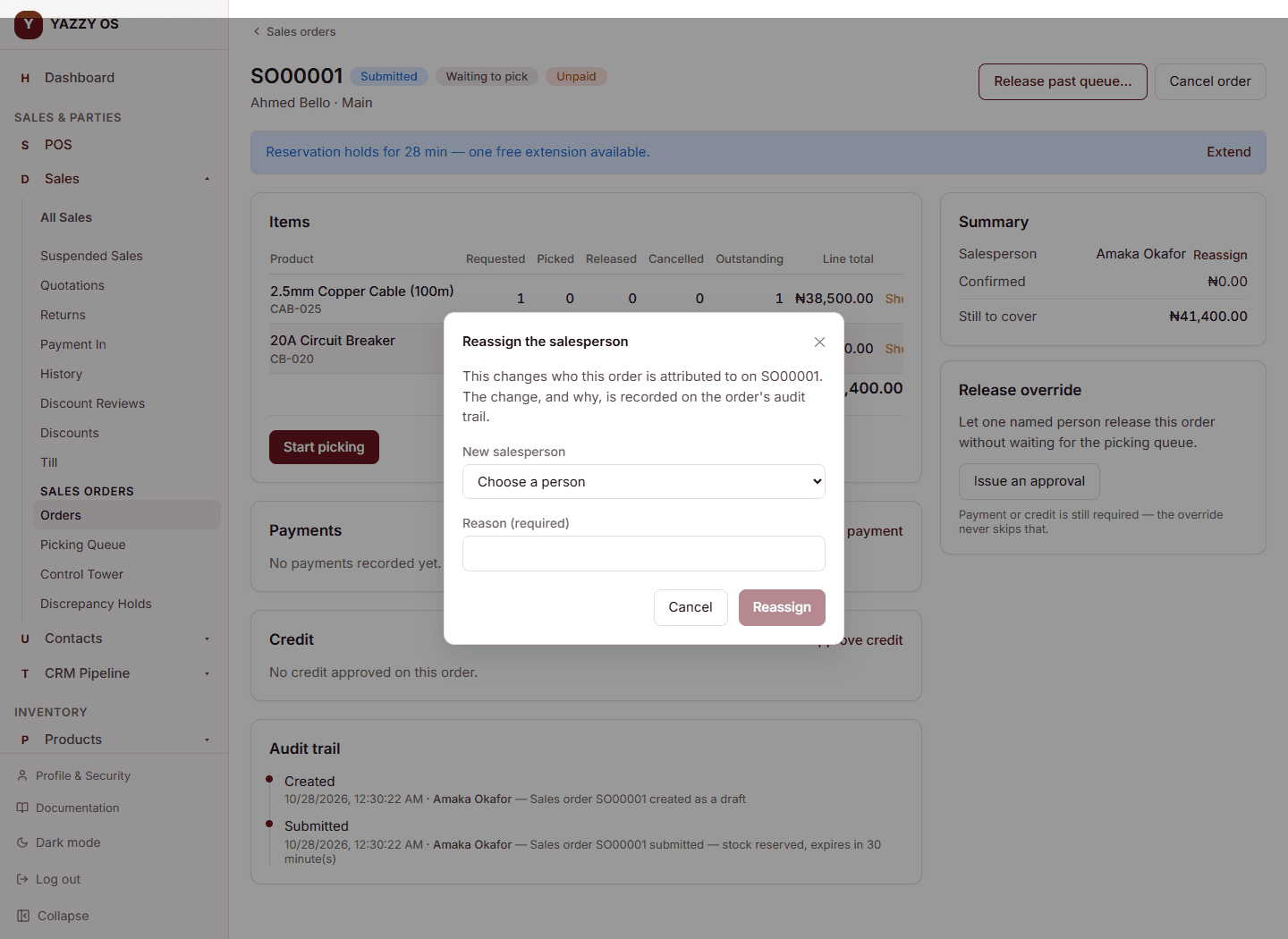
Before it runs out, you'll see a warning on the order and get one free extension — select Extend on the order's own page. A second extension needs a manager's help.
If a reservation runs out with nothing paid and no credit approved, the order is marked Expired and its stock goes back to being available to everyone else. Nothing is lost — you can create a fresh order for the same customer at any time.
An order that has any payment recorded, or any approved credit, is never expired automatically — see Payments and credit on sales orders.
Correcting who an order is attributed to
If an order was raised under the wrong name, open it and select Reassign next to the Salesperson field. Choose the new salesperson and give a reason — the change, and why, is recorded on the order's own audit trail, so attribution is never quietly altered. This is only available while the order is still open (not yet completed, cancelled, or expired).
Related
Testing your setup: a full order from start to finish
A step-by-step walkthrough to try controlled sales orders end to end before you rely on them, including confirming the instant checkout is properly locked.
Picking and stock shortages
Work the picking queue, verify stock physically, and record a shortage honestly when you find one.