Recording a purchase from a supplier
Create a purchase order for stock you're buying in.
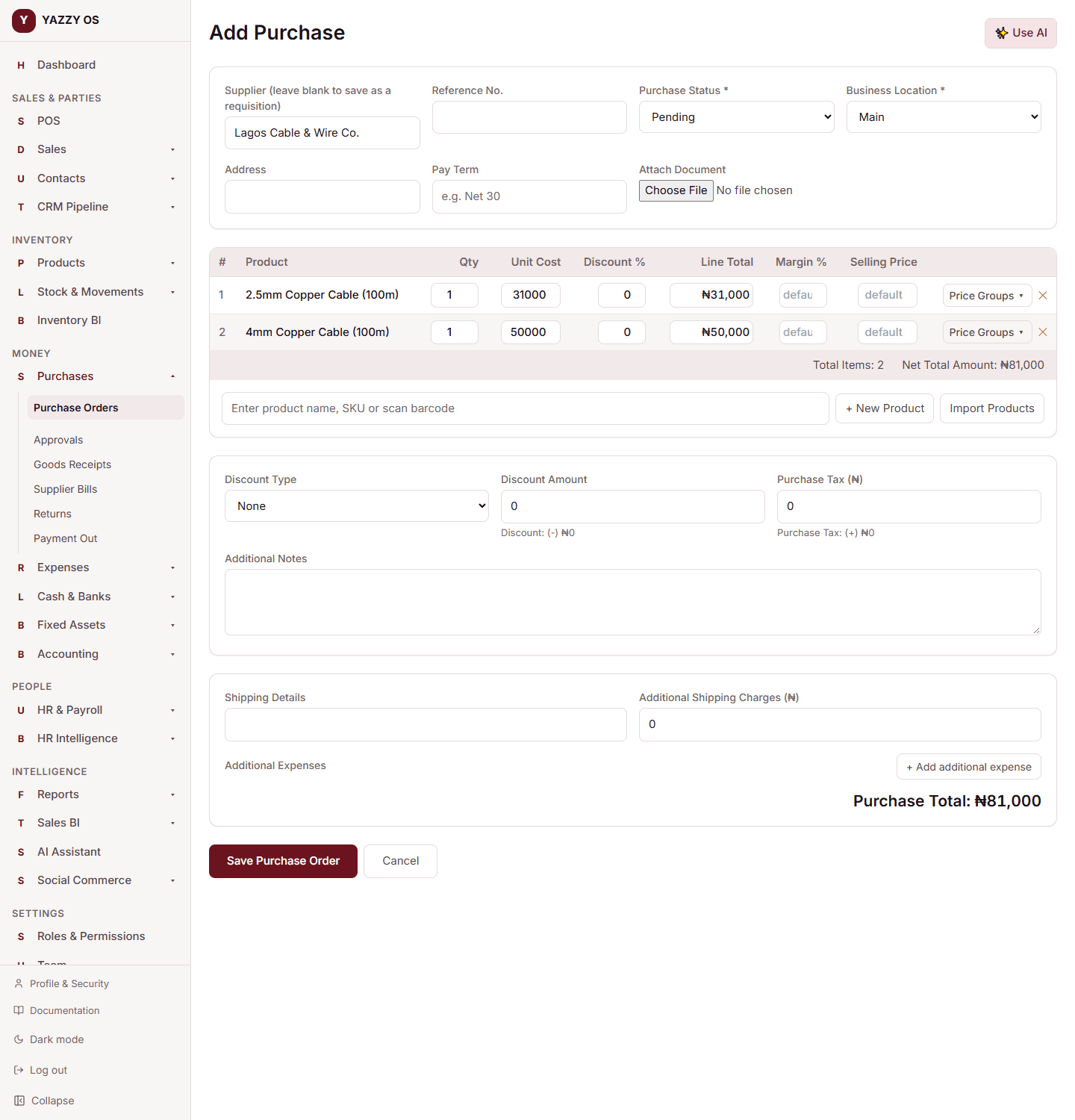
- Go to Purchases and select New.
- Optionally search for and select a supplier — you can also save a purchase with no supplier chosen yet and assign one later. If the supplier you type doesn't exist yet, select + Add new supplier to create one on the spot — a full supplier form opens right there, and once saved you're straight back on the purchase order with your new supplier already selected. No need to leave the page and start over.
- Fill in a reference, delivery address, and payment term, if relevant.
- Search for and add the products you're buying, entering the quantity and unit cost for each. You can also add a per-line discount, and override the margin or selling price a line will set once received. The same applies here: if a product doesn't exist in your catalog yet, select + New Product to create it without leaving the purchase order — it's added to your catalog and to this purchase order's line list in one step.
- Add any order-level discount, tax, shipping charges, or other additional expenses.
- Set the Purchase Status — Pending, Ordered, or Received, as a quick way to track where the order is.
- Record a payment amount, if you're paying the supplier something now.
- Save the purchase order.
Creating a purchase order doesn't add anything to your stock by itself — stock only updates once you actually receive the goods. See Receiving goods and updating stock.
Your full list of purchase orders (with an Export button) is under Purchases.
Getting a purchase order approved and sent to your supplier
If you save a purchase order as a full Draft — rather than using the quick Purchase Status shortcut in step 6 above — it follows a formal approval path before it's issued:
- Open the purchase order and select Submit for Approval.
- If your workspace has a purchase order approval threshold set, and this order's total meets or exceeds it, the order moves to Pending Approval and appears under Purchases → Approvals for someone with the required role to approve or reject. If no threshold is set, or the total is below it, the order is approved right away.
- Once the order shows Approved, select Send to Supplier to mark it as issued.
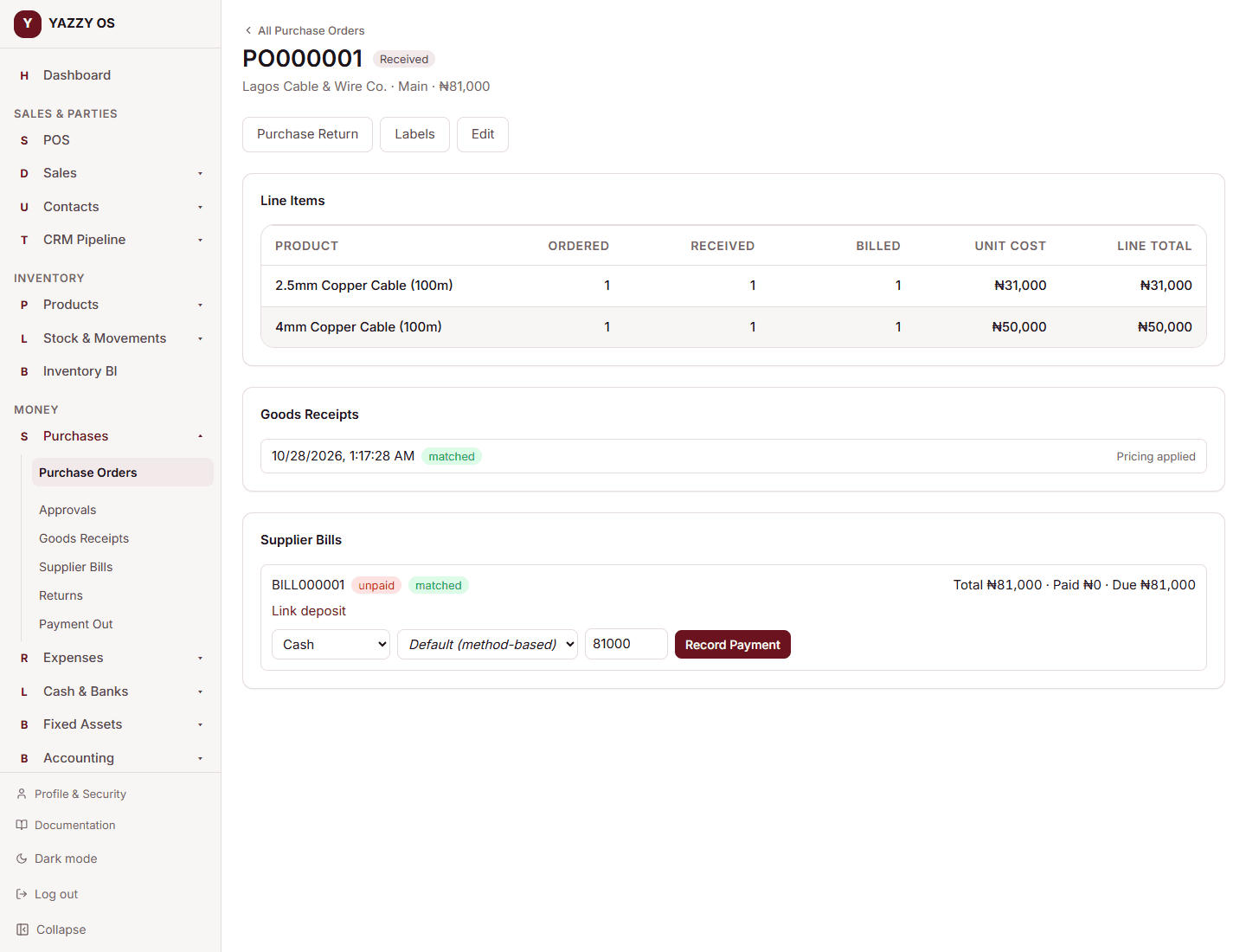
You can create a Supplier Bill from a purchase order once at least some of it has actually arrived — the option only appears after a goods receipt exists for the order, since a bill reflects what was actually delivered, not what was originally ordered. See Receiving goods and updating stock.
Changing a purchase order
A purchase order can be edited only until it is ordered. That means a requisition, a draft, or one that was rejected:
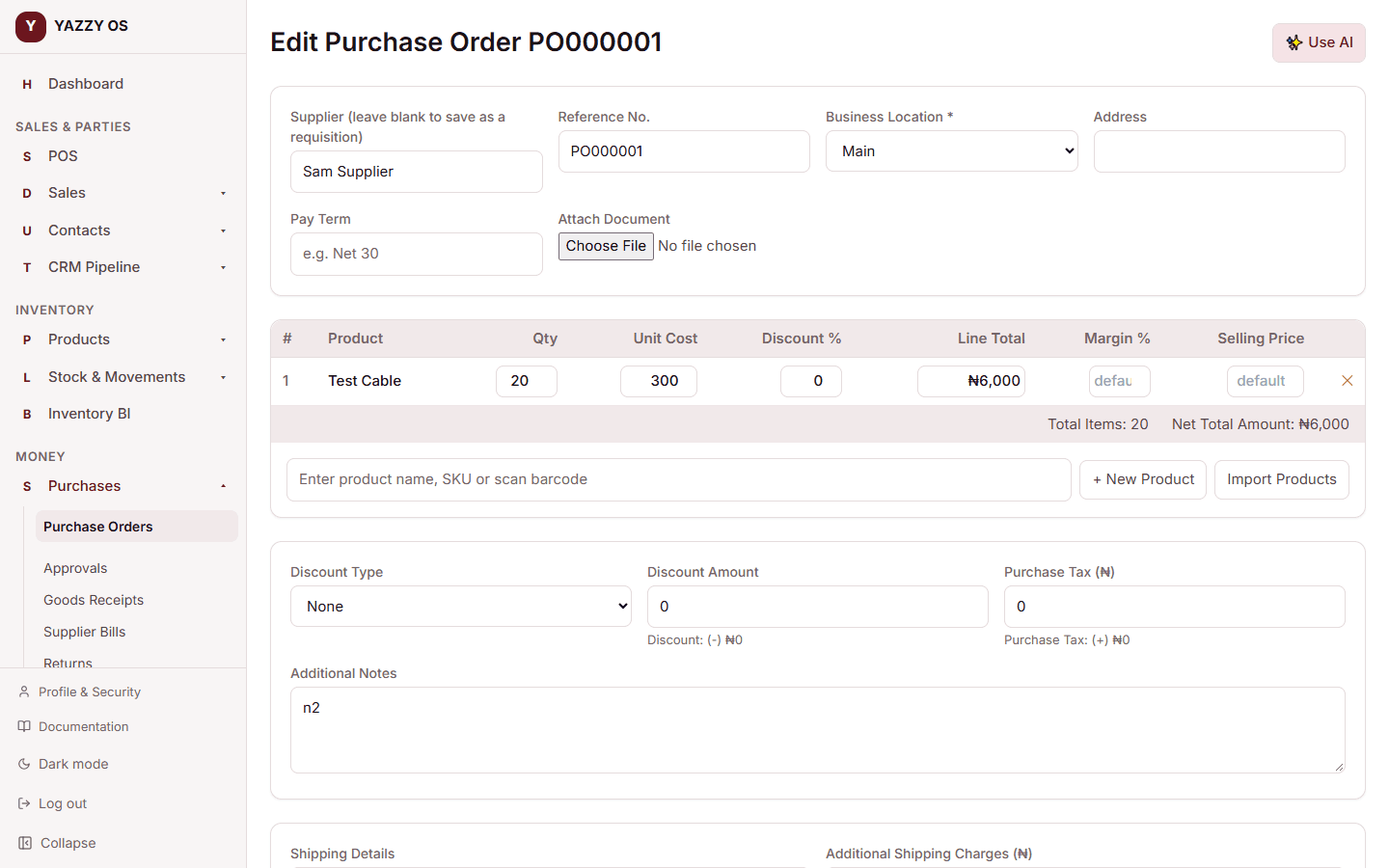
- Open the purchase order and select Edit.
- The same form you used to create it opens, with everything filled in. Change the supplier, items, quantities, costs, discounts or notes.
- Select Update purchase order. It is saved in place and keeps its reference. A rejected order goes back to a draft, so you can send it for approval again.
Once a purchase order is waiting for approval, approved, ordered (sent) or received, it is locked. Editing at that point would bypass the approval or no longer match what the supplier was told or what arrived. Instead:
- If it's wrong before goods arrive, cancel it and raise a new one.
- If goods have been received and something must go back, use a purchase return (Return to supplier).
- The shipping details can still be updated with Update shipping.
Paying a supplier
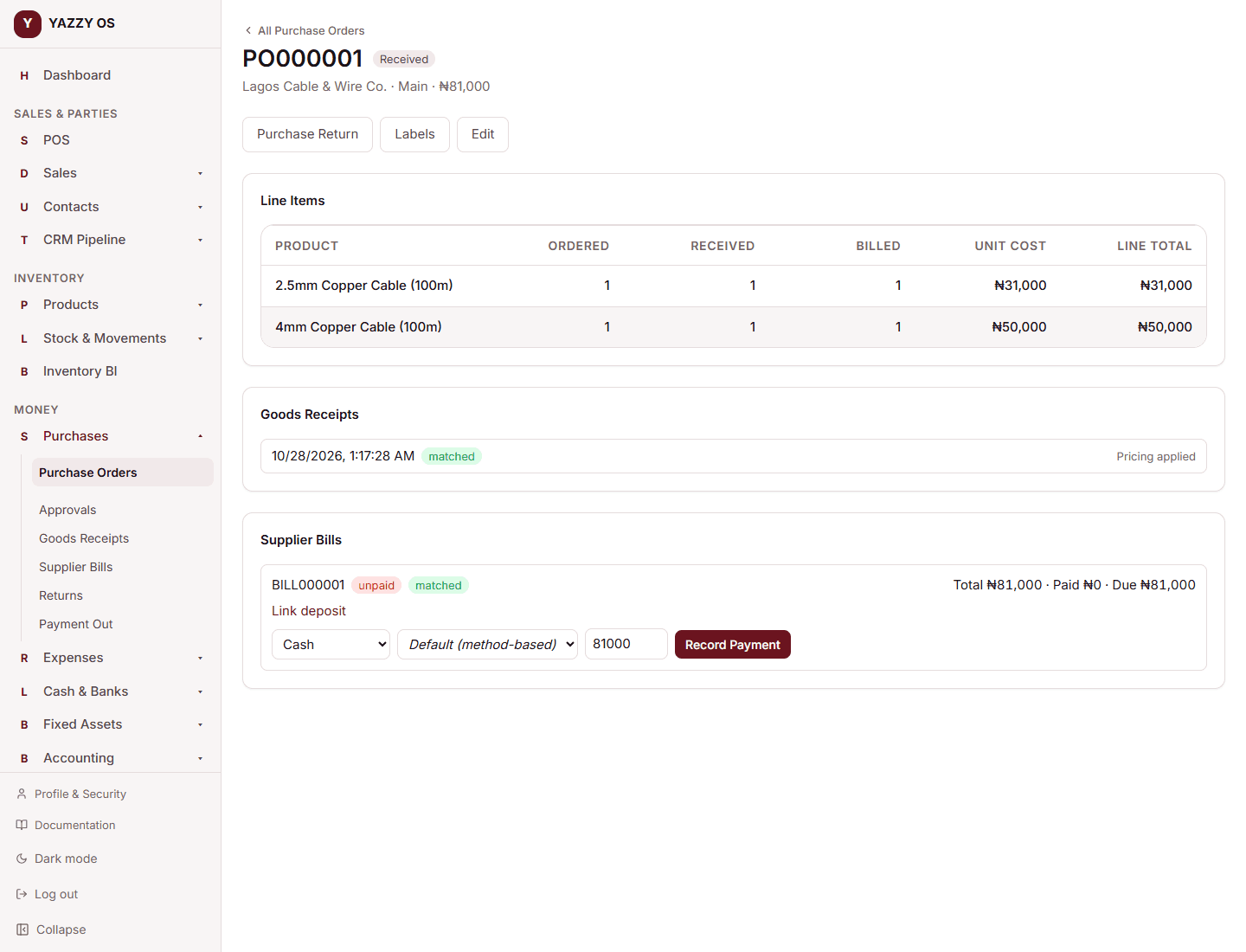
Wherever you record a payment to a supplier — the payment step above, Add Payment on a Supplier Bill, or the Pay action from the supplier's own contact page — you'll see a Pay from Account field alongside the payment method.
Leave it as Default (method-based) and YAZZY OS uses whichever account that payment method normally posts to. Choose a specific account instead when you want to be explicit about exactly which till or bank account the money left from — useful if you have more than one cash drawer or bank account and want your records to reflect precisely which one paid a given bill. See Understanding your accounts for what an account is.
Buying in cartons or packs
When your company uses primary and secondary units, an item that has a secondary unit shows a unit box beside its name on each line. Pick the unit (Carton or Pack), then type the quantity and unit cost for that unit. The order total is exactly what you typed. Step by step: Buy, receive and return in units.
Related
- Understanding product pricing and cost
- Purchase returns
- Exporting a list
- Roles & what your team can see — including how approval thresholds work
- Understanding your accounts
- Adding a new product