The order control tower and discrepancy holds
See what's stuck across every sales order without opening each one.
These two screens are for management visibility — seeing what needs attention across every sales order at once, rather than opening each one to check.
The control tower
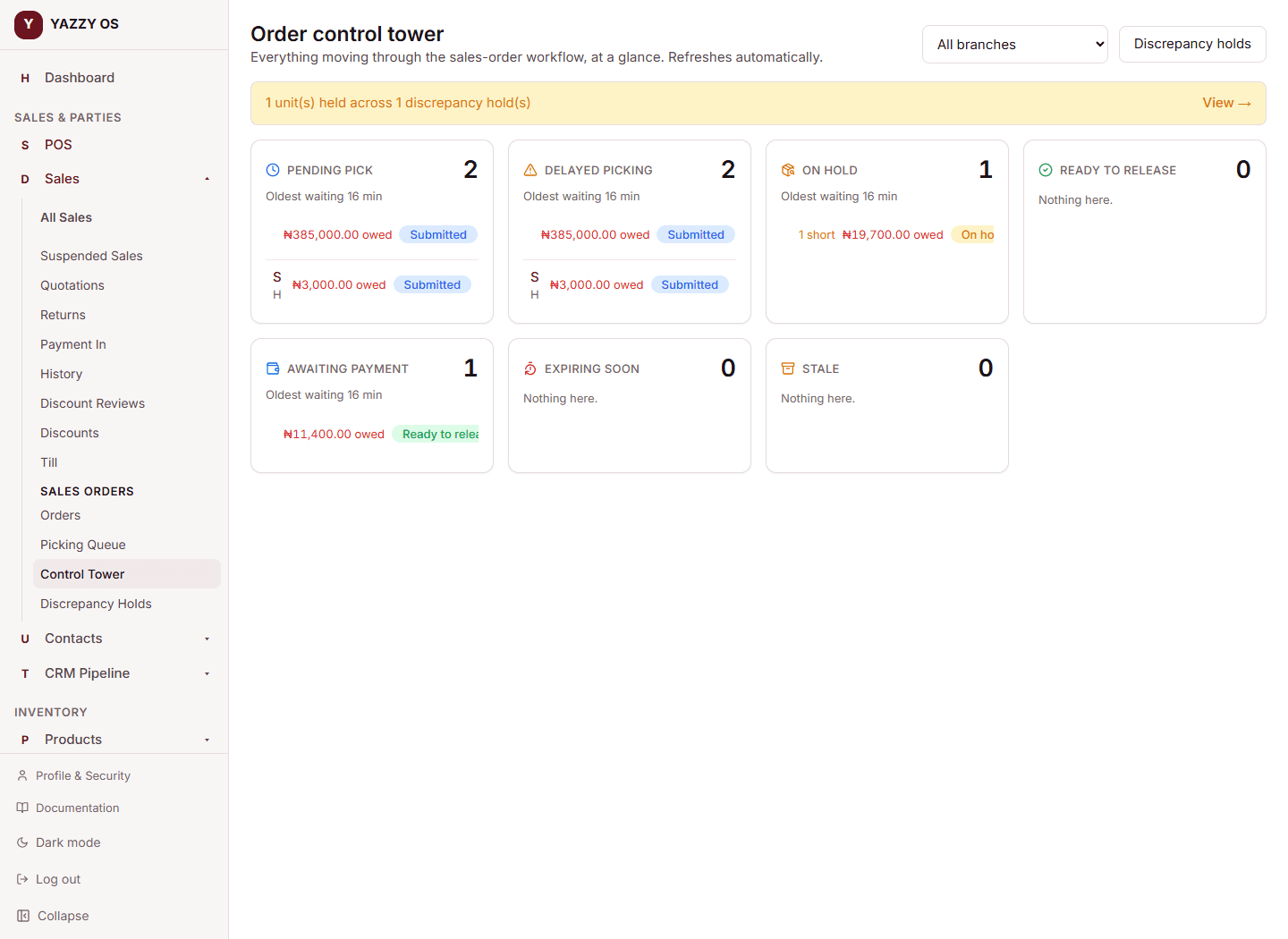
Go to Sales → Control Tower. It's organized into tiles, each an at-a-glance count with the most urgent orders listed underneath:
| Tile | What it shows |
|---|---|
| Pending pick | Submitted, waiting for the stockkeeper. |
| Delayed picking | Sitting in the queue longer than your business's own comfort limit. |
| On hold | A shortage is blocking it. |
| Ready to release | Picked and paid — just needs the final step. |
| Awaiting payment | Picked, but payment or credit isn't settled yet. |
| Expiring soon | An unpaid reservation about to run out. |
| Stale | Paid or credit-approved, but sitting unreleased far longer than usual — a sign something was forgotten. |
Select any order in the list to open it directly.
Discrepancy holds
Go to Sales → Discrepancy Holds to see every unit currently held back because a stock shortage hasn't been fully accounted for — how many units, on which order, raised by whom, and how long it's been open. Holds open longer than your business's own comfort limit are flagged so they don't get forgotten.
Closing a hold
Once a shortage's decision has been recorded, its hold can be closed one of two ways:
- The units were found — nothing about your stock changes; the order still owes those units, same as before.
- They were written off — this needs an approved stock adjustment that already corrected your stock down for those exact units. Closing the hold this way removes them from the order permanently.
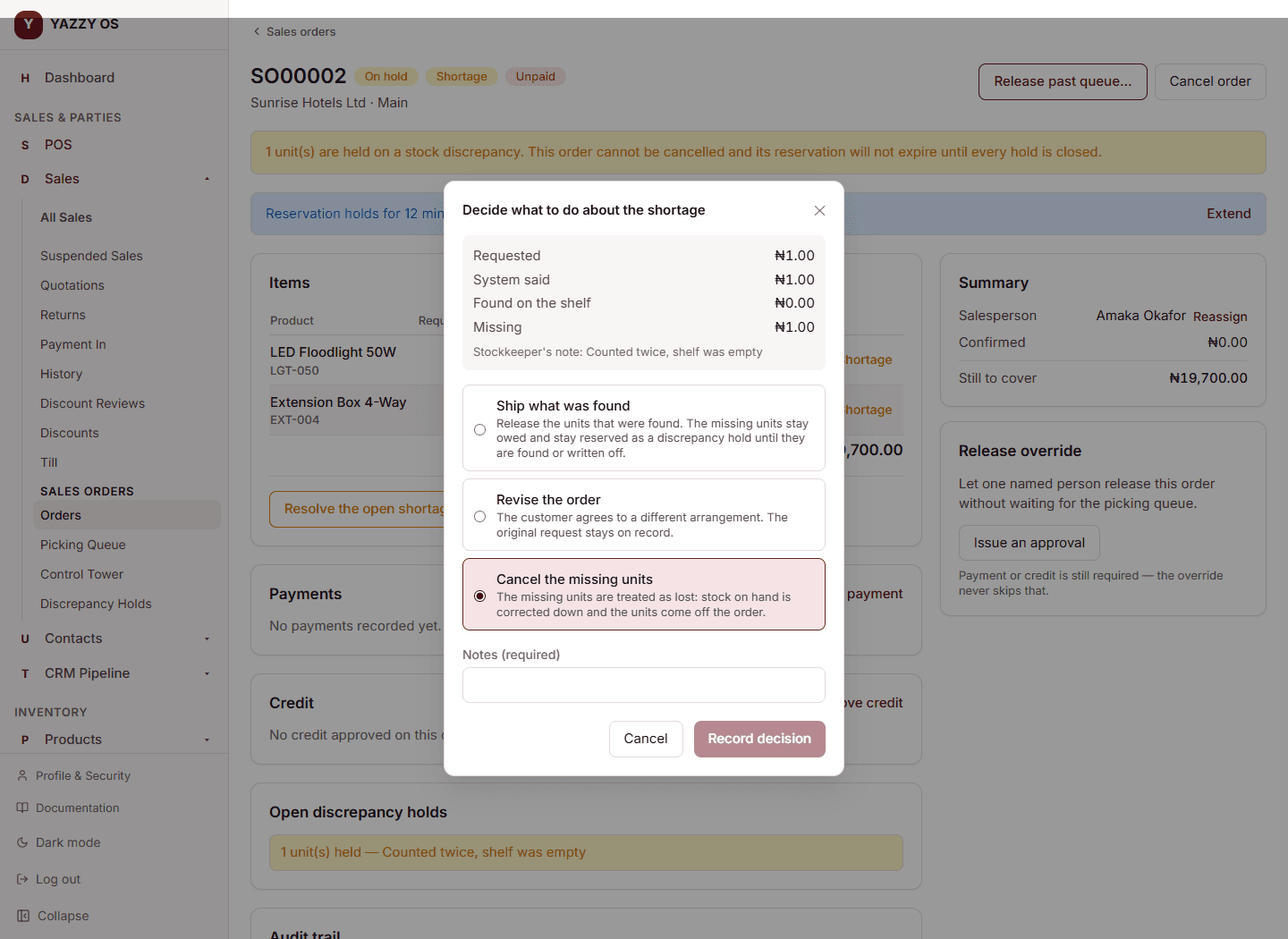
A hold also closes itself automatically once the missing units are found, picked, and released on a later pass — no manual step needed in that case.