Understanding stock levels across branches
See how much of a product you have, and where.
Stock in YAZZY OS is tracked per branch, not just as one total number for your whole business.
Checking a product's stock
- Go to Products and open the product.
- Find the Stock by Location section on its page.
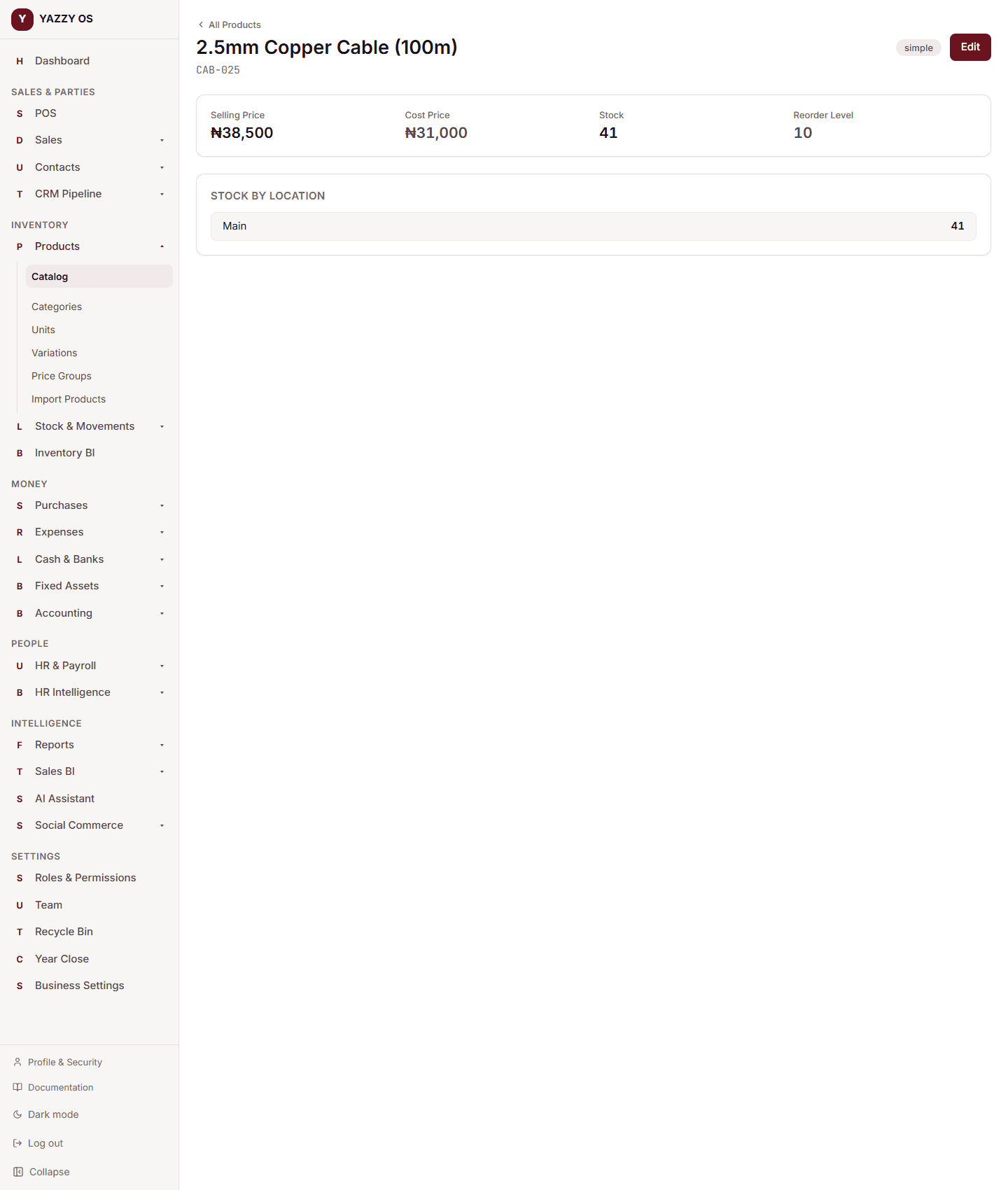
This shows how many units of that product you have at each branch. A sale, purchase, transfer, or count adjustment at one branch only changes that branch's number — your other branches are unaffected.
Who sees what
What a team member sees here also depends on their role and whether they're restricted to a single branch — see Roles & what your team can see and Branches / locations.
The full history
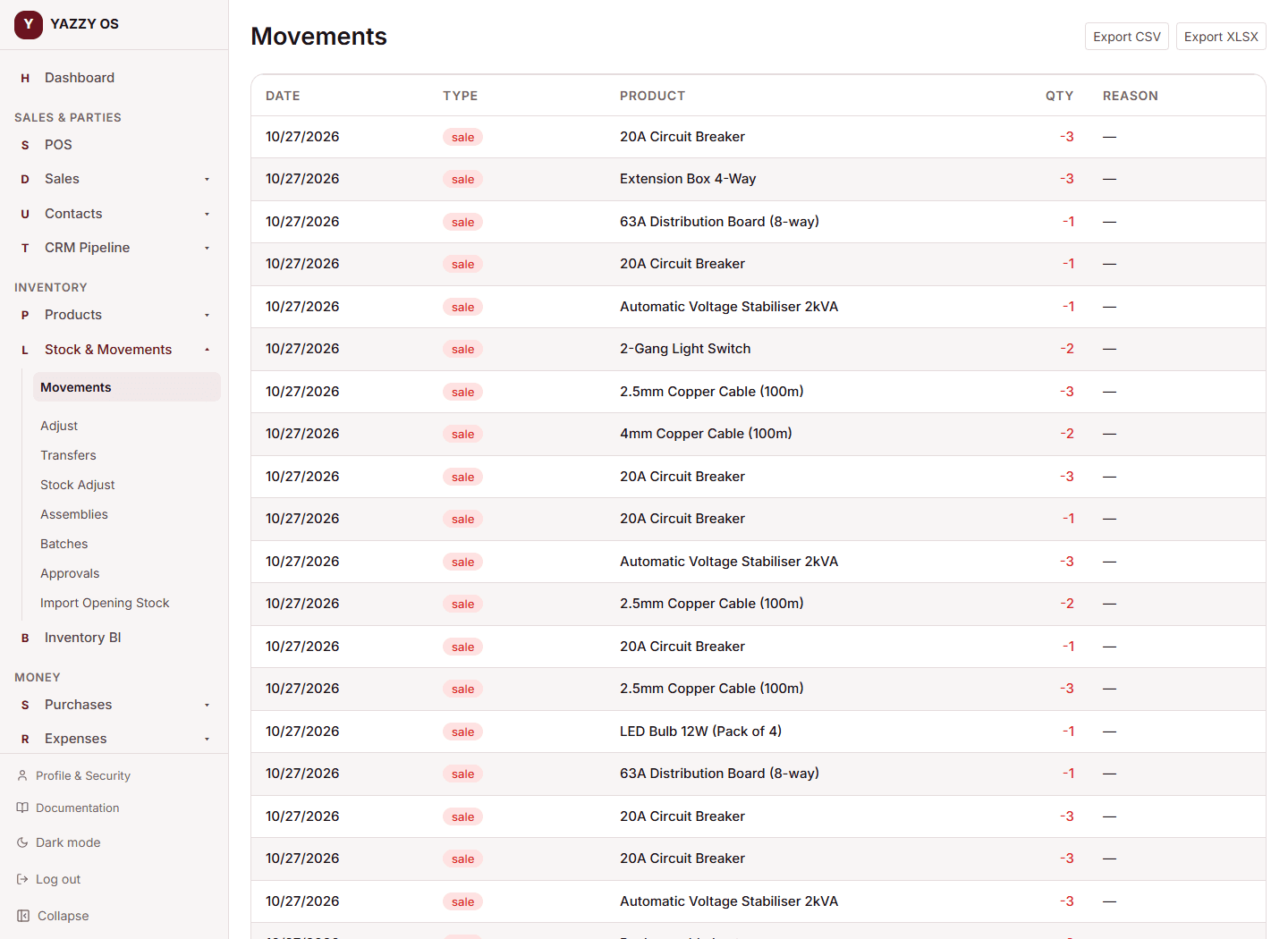
Every event that changes stock — a sale, a purchase, a transfer, a count adjustment — is logged. Go to Stock → Movements to see the full history, filterable by type, with an Export button if you want it as a spreadsheet.
Stock shown in cartons and packs
For an item with a secondary unit, stock is held in the primary unit and shown broken down: 9.85 cartons appears as 9 Carton 17 Pack. This applies to the product list, the product page, stock movements, stock counts and the product's stock history. Compound products show no stock of their own — their parts do. See Units and product types.